
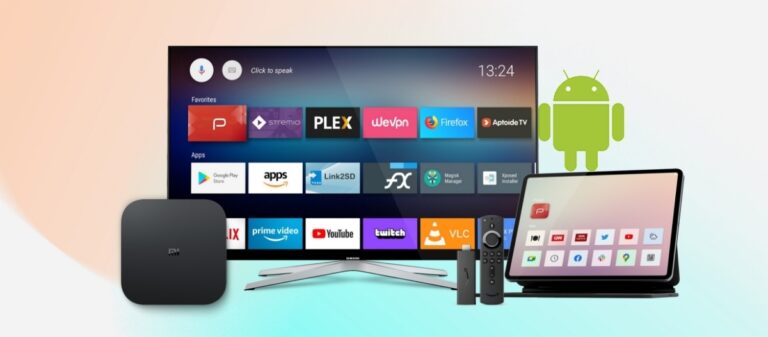
يختار العديد من المشترين شاشات العرض الرقمية التي تعمل بنظام أندرويد لما تبدو عليه من مرونة وفعالية من حيث التكلفة، إلا أن نجاح أي مشروع تجاري يعتمد على عوامل أخرى غير الجهاز نفسه. فقد تتطلب لوحات قوائم المطاعم، وشاشات العروض الترويجية في المتاجر، وشاشات عرض ردهات الفنادق، وشاشات إشعارات المكاتب، والأكشاك التفاعلية، أداءً مختلفًا للأجهزة، وإعدادات نظام أندرويد، وبرامج إدارة محتوى، واستقرارًا للشبكة، ودعمًا للإدارة عن بُعد. في حال كانت الإعدادات غير كافية، قد تتجمد الشاشات، أو تفشل في إعادة التشغيل بعد انقطاع التيار الكهربائي، أو يصعب تحديثها في مواقع متعددة. تشرح هذه المقالة كيفية مقارنة مشغلات شاشات العرض الرقمية التي تعمل بنظام أندرويد، وشاشات العرض المتكاملة، وأجهزة استقبال التلفزيون، وشاشات الأكشاك، وبرامج إدارة المحتوى، ودعم الموردين، لمساعدة مشتري الشركات على اختيار الحل الأمثل الذي يلبي متطلبات مشاريعهم.
ما هي اللافتات الرقمية التي تعمل بنظام أندرويد ولماذا يُعدّ التكوين مهمًا؟
يعتقد العديد من المشترين اللافتات الرقمية التي تعمل بنظام أندرويد ببساطة، يعني ذلك استخدام تلفزيون يعمل بنظام أندرويد، أو جهاز استقبال تلفزيوني، أو تطبيق تشغيل لعرض الصور والفيديوهات على الشاشة. قد يكون هذا مناسبًا للاستخدامات البسيطة جدًا، ولكن في المشاريع التجارية، تُعدّ اللافتات الرقمية التي تعمل بنظام أندرويد عادةً حلاً متكاملاً للعرض، وليست مجرد أداة أساسية لتشغيل الوسائط.
نموذجي حلول اللافتات الرقمية لنظام أندرويد قد يشمل ذلك:
- أجهزة تعمل بنظام أندرويدمثل شاشة العرض المتكاملة، أو مشغل الوسائط الذي يعمل بنظام أندرويد، أو جهاز استقبال التلفزيون، أو شاشة العرض الخاصة بالكشك
- شاشة عرض تجاريةتُستخدم للإعلان، وقوائم الطعام، وعرض المعلومات، وتحديد المواقع، أو المحتوى التفاعلي
- تطبيق مشغلات اللافتات، الذي يقوم بتشغيل محتوى الوسائط على الجهاز
- برنامج إدارة المحتوى، يستخدم لتحميل المحتوى وجدولته وإدارته
- اتصال الشبكةمثل دعم شبكة Wi-Fi أو Ethernet أو شبكة الهاتف المحمول
- ميزات الإدارة عن بعدمما يسمح للفرق بتحديث المحتوى أو مراقبة الشاشات من مواقع مختلفة
يمكن استخدام اللافتات الرقمية التي تعمل بنظام أندرويد في العديد من سيناريوهات الأعمال، بما في ذلك:
- قوائم الطعام الرقمية للمطاعم
- شاشات العرض الترويجية في متاجر البيع بالتجزئة
- شاشات عرض المعلومات في ردهة الفندق
- لوحات الإعلانات في المدارس والحرم الجامعي
- شاشات إعلانات الشركات
- شاشات توجيهية في مراكز التسوق
- أكشاك تفاعلية ومحطات خدمة ذاتية
إن سبب أهمية التكوين بسيط: فالمشاريع المختلفة لها متطلبات تشغيل مختلفة.
على سبيل المثال:
- قد لا تحتاج لوحة قائمة الطعام في مطعم صغير إلا إلى عرض صور ثابتة ومقاطع فيديو بسيطة.
- قد تحتاج سلسلة متاجر التجزئة إلى عروض ترويجية مجدولة عبر متاجر متعددة.
- قد تتطلب شاشة ردهة الفندق تشغيلًا يوميًا مستقرًا وعرضًا مرئيًا أنيقًا.
- قد يحتاج الكشك التفاعلي إلى التحكم باللمس، ووضع الكشك، وقفل التطبيق، واستقرار أقوى للنظام.
- قد تتطلب شبكة اللافتات متعددة المواقع برامج إدارة المحتوى، والمراقبة عن بعد، وتحديثات المحتوى المركزية.
إذا كانت الإعدادات منخفضة للغاية أو غير متوافقة بشكل جيد، فقد تظهر عدة مشاكل:
- قد يحدث تأخير أو تجمد في الشاشة أثناء تشغيل الفيديو.
- قد يفشل الجهاز في إعادة تشغيل المحتوى بعد انقطاع التيار الكهربائي.
- قد يحتاج الموظفون إلى تحديث كل شاشة يدويًا.
- قد يتم إغلاق تطبيق اللافتات بشكل غير متوقع.
- قد يؤدي عدم استقرار الشبكة إلى انقطاع تحديثات المحتوى.
- قد تصبح تكاليف الصيانة طويلة الأجل أعلى من المتوقع.
لهذا السبب، لا ينبغي للمشترين مقارنة شاشات العرض الرقمية التي تعمل بنظام أندرويد بناءً على سعر الجهاز فقط. فهي موثوقة. حلول اللافتات الرقمية التجارية ينبغي تقييم النظام بناءً على نوع الشاشة، واستقرار نظام أندرويد، ومتطلبات التشغيل، وبيئة الشبكة، والتوافق مع أنظمة إدارة المحتوى، والإدارة عن بُعد، واحتياجات الصيانة طويلة الأجل. يُسهّل النظام المُهيأ جيدًا تحديث المحتوى، ويُحسّن استقرار التشغيل، ويُخفف الضغط التشغيلي اليومي على المشاريع التجارية.
أنواع شائعة من اللافتات الرقمية التي تعمل بنظام أندرويد وأفضل استخداماتها
بمجرد أن يفهم المشترون البنية الأساسية لشاشات العرض الرقمية التي تعمل بنظام أندرويد، فإن الخطوة التالية هي اختيار نوع الجهاز المناسب. على الرغم من أن العديد من الأجهزة يمكنها تشغيل تطبيقات شاشات العرض التي تعمل بنظام أندرويد، إلا أن استقرارها وطريقة تثبيتها ومرونة ترقيتها وسيناريوهات استخدامها الأمثل تختلف.
بالنسبة لمشاريع الأعمال بين الشركات (B2B)، تشمل الخيارات الأكثر شيوعًا ما يلي:
- شاشات عرض رقمية متكاملة تعمل بنظام أندرويد
- مشغلات الوسائط الخارجية التي تعمل بنظام أندرويد
- أجهزة استقبال التلفزيون التي تعمل بنظام أندرويد أو أجهزة بث التلفزيون
- شاشات أجهزة التابلت أو الأكشاك التي تعمل بنظام أندرويد
شاشات عرض رقمية متكاملة تعمل بنظام أندرويد
تجمع شاشة العرض الرقمية المتكاملة التي تعمل بنظام أندرويد بين الشاشة ونظام أندرويد في جهاز واحد. وهي خيار عملي للمطاعم، ومتاجر البيع بالتجزئة، وردهات الفنادق، والمكاتب، والمدارس، ومناطق المعلومات العامة حيث يرغب المشترون في تركيب أنيق دون الحاجة إلى مشغل إضافي خلف الشاشة.
يُعد هذا النوع مناسبًا تمامًا للوحات قوائم الطعام الرقمية، وشاشات العروض الترويجية في المتاجر، وشاشات عرض المعلومات في ردهات الفنادق، وشاشات الإعلانات المثبتة على الجدران. ويكون الإعداد عادةً أبسط لأن الشاشة قادرة على عرض محتوى اللافتات مباشرةً من خلال نظام أندرويد مدمج أو تطبيق لافتات متوافق.
يتمثل القيد الرئيسي في مرونة الترقية. نظرًا لأن مكونات نظام أندرويد مدمجة في الشاشة، لا يستطيع المستخدمون استبدال مشغل الوسائط بسهولة كما هو الحال مع مشغل وسائط خارجي. وللاستخدام التجاري طويل الأمد، لا يزال من المهم التحقق من استقرار النظام، وتوافق نظام إدارة المحتوى، والتشغيل التلقائي، ودعم التحديث عن بُعد.
مشغلات الوسائط الخارجية لنظام أندرويد
خارجي مشغل وسائط أندرويد للشاشات الرقمية هو جهاز تشغيل منفصل متصل بشاشة عبر منفذ HDMI أو أي منفذ عرض آخر. يُستخدم غالبًا عندما يمتلك المشترون شاشات عرض تجارية موجودة مسبقًا، أو عندما يرغبون في طريقة مرنة لترقية الشاشات دون استبدال الشاشة نفسها.
يُعدّ هذا الخيار مناسبًا للمشاريع متعددة الشاشات، والمتاجر المتسلسلة، وشاشات العرض في وسائل النقل، وشاشات المكاتب، وشبكات الإعلان في قطاع التجزئة. في حال أصبح مشغل الوسائط قديمًا أو احتاج إلى أداء أفضل لاحقًا، يمكن للمشتري استبدال المشغل فقط بدلًا من تغيير الشاشة بأكملها.
تتمثل الميزة الرئيسية في المرونة. مع ذلك، ينبغي على المشترين التحقق مما إذا كان المشغل يدعم الدقة المطلوبة، وطريقة الاتصال بالشبكة، وبرنامج إدارة المحتوى، ومساحة التركيب، والتشغيل طويل الأمد. كما أن توافق الشاشة مهم أيضًا، لا سيما لتشغيل الفيديو بدقة 4K، أو الوضع الرأسي، أو استخدام عدة شاشات.
أجهزة استقبال التلفزيون بنظام أندرويد وأجهزة بث التلفزيون
غالباً ما تُعتبر أجهزة Android TV Box و TV Sticks خياراً مناسباً للميزانيات المنخفضة. شاشات عرض رقمية تعمل بنظام Android TV يمكن توصيلها بأجهزة تلفزيون أو شاشات عرض عادية واستخدامها لعرض الصور أو مقاطع الفيديو الأساسية.
قد يكون هذا النوع مقبولاً في الحالات التالية:
- المتاجر الصغيرة
- ترقيات مؤقتة
- عروض شرائح بسيطة
- شاشات العرض أحادية الشاشة
- أحداث قصيرة الأجل
مع ذلك، ينبغي على المشترين توخي الحذر عند استخدام أجهزة استقبال البث التلفزيوني المخصصة للمستهلكين لأغراض تجارية طويلة الأمد. فهذه الأجهزة مصممة عادةً للترفيه، وليس للعرض التجاري المستمر. وقد تكون إمكانياتها محدودة من حيث الاستقرار، والتحكم في الحرارة، والإدارة عن بُعد، وقفل التطبيقات، وإعادة التشغيل التلقائي، وسعة التخزين.
لذا، فإنّ الطريقة الأفضل لتقييمها ليست السؤال "هل يمكنها تشغيل المحتوى؟" بل السؤال "هل يمكنها العمل بكفاءة عالية يوميًا مع الحد الأدنى من الصيانة؟". بالنسبة للمشاريع الصغيرة والبسيطة، قد تكون كافية. أما بالنسبة للمطاعم والفنادق وسلاسل البيع بالتجزئة أو المشاريع متعددة المواقع، فعادةً ما يكون مشغل أندرويد تجاري أو شاشة عرض متكاملة خيارًا أكثر أمانًا.
أجهزة لوحية تعمل بنظام أندرويد وشاشات عرض الأكشاك
تُعد أجهزة التابلت التي تعمل بنظام أندرويد وشاشات الأكشاك أكثر ملاءمة للتطبيقات التفاعلية. وعلى عكس شاشات اللافتات القياسية، فهي مصممة للتفاعل مع المستخدم عن قرب، وغالبًا ما تدعم التشغيل باللمس.
تُستخدم عادةً في:
- أكشاك الطلب الذاتي
- أجهزة تسجيل الوصول
- أكشاك التوجيه
- شاشات إدارة الطوابير
- شاشات تصفح المنتجات
- محطات جمع الملاحظات
- أنظمة تسجيل الزوار
تتمثل الميزة الرئيسية في التفاعل. إذ يمكن للمشترين دمج أجهزة أندرويد مع شاشات اللمس، والكاميرات، والماسحات الضوئية، والطابعات، ووحدات الدفع، أو التطبيقات المخصصة. وهذا ما يجعل شاشات أكشاك أندرويد مفيدة للمطاعم، والفنادق، والمتاحف، والمستشفيات، والمدارس، ومراكز التسوق، ومراكز الخدمة.
تكمن المشكلة في مسافة المشاهدة. فالأجهزة اللوحية وشاشات العرض الصغيرة في الأكشاك ليست مثالية عندما يكون الهدف هو جذب الانتباه من مسافة بعيدة. أما إذا كان المشروع يتطلب إعلانات كبيرة الحجم أو عرض معلومات عامة، فإن شاشة تجارية أكبر ستكون أنسب.
| النوع | أفضل حالات الاستخدام | الميزة الرئيسية | القيد الرئيسي |
|---|---|---|---|
| شاشة عرض متكاملة تعمل بنظام أندرويد | المطاعم، ومتاجر البيع بالتجزئة، وردهات الفنادق، والمكاتب | نظام متكامل وتركيب نظيف | مرونة ترقية الأجهزة محدودة |
| مشغل وسائط خارجي يعمل بنظام أندرويد | الشاشات الحالية، مشاريع الشاشات المتعددة، مشاريع الترقية | سهولة الاستبدال ومرونة النشر | يتطلب فحص توافق الشاشة |
| جهاز استقبال تلفزيوني يعمل بنظام أندرويد / جهاز بث تلفزيوني | متاجر صغيرة، عروض شرائح بسيطة، عرض مؤقت | تكلفة دخول منخفضة | قد تكون الاستقرارية والإدارة عن بعد محدودة |
| شاشة عرض لجهاز لوحي/كشك يعمل بنظام أندرويد | كشك الطلبات، كشك تسجيل الوصول، نظام التوجيه، الخدمة الذاتية | التفاعل باللمس والحجم الصغير | غير مناسب للمشاهدة من مسافات بعيدة |
باختصار، يعتمد النوع الأمثل على غرض المشروع. ففي المنشآت التجارية النظيفة، غالبًا ما تكون شاشة العرض المتكاملة بنظام أندرويد مناسبة. أما في حال التحديثات المرنة أو شبكات الشاشات المتعددة، فقد يكون مشغل الوسائط الخارجي بنظام أندرويد خيارًا أفضل. وللتشغيل البسيط والمؤقت، يمكن النظر بعناية في استخدام جهاز استقبال أو وحدة تخزين الوسائط. أما في سيناريوهات الخدمات التفاعلية، فعادةً ما تكون أجهزة أندرويد اللوحية أو شاشات العرض في الأكشاك هي الخيار الأنسب.
مواصفات الأجهزة الموصى بها لشاشات العرض الرقمية التجارية التي تعمل بنظام أندرويد
بعد تحديد نوع الجهاز، ينبغي على المشترين التدقيق في مواصفات الجهاز. ففي المشاريع التجارية، لا تقتصر المواصفات على كونها مجرد تفاصيل تقنية، بل تؤثر بشكل مباشر على سلاسة التشغيل، واستقرار النظام، والتحكم في الحرارة، والصيانة عن بُعد، وتكاليف التشغيل على المدى الطويل.
قد يبدو الجهاز الأرخص مقبولاً خلال اختبار قصير، لكن المشاكل غالباً ما تظهر بعد بدء الاستخدام اليومي. على سبيل المثال، إذا لم يتمكن الجهاز من التعامل مع ملفات الفيديو الكبيرة، أو مخرجات عالية الدقة، أو ساعات التشغيل الطويلة، أو تحديثات المحتوى المتكررة، فقد تتأخر الشاشة، أو تتجمد، أو تُعاد تشغيلها، أو تفشل في عرض المحتوى بشكل صحيح. لهذا السبب تكوين اللافتات الرقمية لنظام أندرويد ينبغي أن تتناسب مع حجم العمل الفعلي للمشروع، وليس فقط مع ميزانية الشراء.
عند التحقق أجهزة تشغيل اللافتات بنظام أندرويدينبغي على المشترين التركيز على هذه المواصفات الرئيسية:
- وحدة المعالجة المركزية ووحدة معالجة الرسوماتتؤثر هذه العوامل على فك تشفير الفيديو، والرسوم المتحركة، وتخطيطات المناطق المتعددة، وأداء التشغيل بشكل عام.
- ذاكرة الوصول العشوائيتساعد زيادة سعة ذاكرة الوصول العشوائي (RAM) عندما يقوم الجهاز بتشغيل مقاطع الفيديو أو الأدوات المصغّرة أو لوحات المعلومات أو مناطق المحتوى المتعددة في نفس الوقت.
- تخزين: التخزين المحلي مهم للتشغيل دون اتصال بالإنترنت، والمحتوى المخزن مؤقتًا، وتحديثات النظام، وبيانات التطبيق.
- إصدار أندرويد: يعمل نظام أندرويد المستقر والمحدث نسبياً على تحسين توافق التطبيقات ودعم البرامج على المدى الطويل.
- إخراج 4Kأ مشغل اللافتات الرقمية 4K بنظام أندرويد قد تكون هناك حاجة إلى ذلك للشاشات الكبيرة، أو مسافة المشاهدة القريبة، أو الإعلانات المميزة، أو الصور التفصيلية للمنتجات.
- توافق HDMIبالنسبة للمشغلات الخارجية، يجب أن تتطابق واجهة الإخراج مع دقة الشاشة ووضع العرض.
- منافذ USB و Type-Cقد تكون هذه الأشياء ضرورية للاتصال باللمس، أو الصيانة، أو نقل المحتوى، أو توسيع الأجهزة الطرفية.
- إيثرنتعادةً ما تكون الشبكة السلكية أكثر استقرارًا للمواقع التجارية التي تتطلب تحديثات متكررة للمحتوى.
- الواي فاي: مفيد عندما يكون التوصيل صعبًا، ولكن يجب اختبار جودة الإشارة قبل النشر.
- بلوتوثمفيد لبعض الأجهزة الطرفية، ولكنه ليس عادةً المتطلب الأساسي لتشغيل اللافتات القياسية.
- تبديد الحرارةتتطلب ساعات التشغيل الطويلة تصميمًا حراريًا جيدًا للحد من التجمد أو الإغلاق التلقائي أو تقادم الأجهزة.
- تصميم بدون مروحةمفيد للأماكن العامة والأكشاك والمنشآت المغلقة حيث ينبغي تقليل الغبار والضوضاء.
- استعادة الطاقةينبغي للجهاز استئناف العمل بعد انقطاع التيار الكهربائي دون الحاجة إلى إعداد يدوي.
- قالب التثبيتقد تتطلب تركيبات المشغلات المخفية، والشاشات المثبتة على الحائط، وشاشات العرض الأرضية، وهياكل الأكشاك تخطيطًا مختلفًا للكابلات والمساحات.
تكوين المستوى المبتدئ
يُعدّ التكوين الأساسي مناسبًا لتشغيل المحتوى البسيط. ويشمل الاستخدام النموذجي الصور الثابتة، وعروض الشرائح الأساسية، ومقاطع الفيديو القصيرة، أو مشاريع العرض على شاشة واحدة مع تحديثات يومية محدودة.
بالنسبة لهذا المستوى، ينبغي على المشترين التحقق بشكل أساسي مما يلي:
- هل يعمل نظام أندرويد بثبات؟
- ما إذا كان تطبيق اللافتات يمكن أن يبدأ تلقائيًا
- هل تكفي مساحة التخزين المحلية لملفات الوسائط الأساسية؟
- هل شبكة الواي فاي مستقرة بما يكفي لإجراء التحديثات الدورية؟
- هل يمكن للجهاز استئناف التشغيل بعد إعادة التشغيل؟
هذا المستوى غير مناسب للفيديوهات عالية الدقة (4K) ذات المحتوى الكثيف، أو المحتوى متعدد المناطق، أو التطبيقات التفاعلية، أو عمليات النشر واسعة النطاق. قد يقلل من التكلفة الأولية، ولكن لا ينبغي استخدامه بما يتجاوز قدرته الفعلية.
التكوين التجاري القياسي
يُعدّ التكوين التجاري القياسي مناسبًا لمعظم مشاريع العرض اليومية في الشركات. تتطلب هذه الشاشات عادةً تشغيلًا مستقرًا، ودقة عرض أعلى، ومحتوى مُجدول، واتصالًا شبكيًا أكثر موثوقية.
بالنسبة لهذا المستوى، ينبغي على المشترين التحقق مما يلي:
- معالج مركزي/معالج رسومات أقوى لتشغيل فيديو أكثر سلاسة
- ذاكرة وصول عشوائي كافية لتطبيقات اللافتات والمحتوى المجدول
- مساحة تخزين كافية للفيديوهات المخزنة مؤقتًا والتشغيل دون اتصال بالإنترنت
- يدعم إخراج الفيديو بدقة 4K إذا تطلب حجم الشاشة أو مسافة المشاهدة ذلك.
- دعم الإيثرنت لتحديثات محتوى أكثر استقرارًا
- إعادة التشغيل التلقائي واستعادة التشغيل بعد انقطاع التيار الكهربائي
- التوافق مع برامج اللافتات الشائعة أو منصات إدارة المحتوى
غالباً ما يكون هذا المستوى هو التوازن الأفضل لـ أجهزة اللافتات الرقمية التجاريةلأنه يدعم التشغيل اليومي الأكثر موثوقية دون الانتقال الفوري إلى التكوين عالي الجودة.
تكوين عالي الأداء أو تفاعلي
يتطلب نظام اللافتات إعدادات عالية الأداء عند التعامل مع مهام أكثر تعقيدًا. ويشمل ذلك تخطيطات الفيديو متعددة المناطق، ولوحات المعلومات الآنية، وتطبيقات اللمس التفاعلية، وأنظمة التوجيه، ومحطات الخدمة الذاتية، أو شبكات الشاشات الكبيرة.
بالنسبة لهذا المستوى، ينبغي على المشترين التحقق مما يلي:
- أداء أعلى لوحدة المعالجة المركزية/وحدة معالجة الرسومات للمحتوى المعقد
- ذاكرة وصول عشوائي إضافية للتطبيقات التفاعلية أو مناطق العرض المتعددة
- مساحة تخزين أكبر لتخزين الفيديو مؤقتًا والمحتوى غير المتصل بالإنترنت
- مخرج 4K ثابت لعرض عالي الدقة
- دعم الشاشة اللمسية والأجهزة الطرفية
- منافذ توسعة USB أو Type-C أو غيرها
- تحكم قوي في الحرارة لتشغيل طويل الأمد
- توافق المراقبة عن بعد
- دعم وضع الكشك للتفاعل العام
- استعادة الطاقة الموثوقة وسلوك إعادة التشغيل
بالنسبة للمشاريع التفاعلية، ينبغي تقييم الإعدادات من خلال كلٍ من التشغيل واستخدام المستخدم. قد يعمل الجهاز بسلاسة عند تشغيل الفيديو، ولكنه قد يعاني من ضعف الأداء عند الحاجة إلى التعامل مع مدخلات اللمس، أو تبديل التطبيقات، أو الوحدات الخارجية، أو الاستخدام العام المتواصل.
| مستوى المشروع | الاستخدام المناسب | التركيز على التكوين المقترح |
|---|---|---|
| مستوى المبتدئين | صور بسيطة، عروض شرائح، شاشة واحدة | نظام أندرويد مستقر، ذاكرة وصول عشوائي/مساحة تخزين أساسية، واي فاي، تشغيل تلقائي |
| تجاري قياسي | عرض يومي للأعمال، محتوى مجدول، تحديثات منتظمة | دعم دقة 4K، معالج مركزي/معالج رسومات أقوى، منفذ إيثرنت، تشغيل تلقائي، توافق مع أنظمة إدارة المحتوى |
| أداء عالٍ | فيديو متعدد المناطق، أكشاك تفاعلية، عمليات نشر واسعة النطاق | ذاكرة وصول عشوائي/سعة تخزين أكبر، دعم اللمس، وضع الكشك، المراقبة عن بُعد، التحكم في الحرارة |
إنّ أفضل طريقة هي مطابقة الإعدادات مع حجم العمل الفعلي. فالتشغيل البسيط لا يتطلب أجهزةً ذات إمكانيات عالية، بينما لا ينبغي للمشاريع متعددة الشاشات، أو بدقة 4K، أو التفاعلية، أو التي تستغرق ساعات طويلة، الاعتماد على أجهزة منخفضة المواصفات. ويساعد الإعداد المتوافق جيدًا على تقليل مشاكل التشغيل، وضغط الصيانة، وتكاليف الاستبدال غير المتوقعة.
نظام أندرويد، ووضع الكشك، وبرامج إدارة المحتوى: ما الذي يجب على المشترين التحقق منه
حتى مع قوة الأجهزة، قد يفشل مشروع لافتات أندرويد في التشغيل اليومي إذا لم يتم ضبط النظام والبرمجيات بشكل صحيح. العديد من المشاكل لا تظهر خلال اختبار قصير، بل تظهر بعد تركيب الشاشة وتشغيلها يوميًا وتوصيلها بشبكة حقيقية وإدارتها من قبل موظفين مختلفين.
على سبيل المثال، قد تُعاد تشغيل الشاشة بعد انقطاع التيار الكهربائي، لكنها تتوقف عند الشاشة الرئيسية لنظام أندرويد. وقد يلمس العميل الشاشة ويخرج من تطبيق اللافتات. وقد يحتاج مدير المتجر إلى تحديث المحتوى يدويًا على كل شاشة. هذه ليست مجرد مشكلات تقنية، بل تؤثر أيضًا على وقت الصيانة، واتساق المحتوى، والموثوقية العامة لشبكة العرض.
لذلك ينبغي على المشترين التحقق من إعدادات نظام أندرويد و برنامج اللافتات الرقمية لنظام أندرويد قبل تأكيد الحل.
استقرار نظام التشغيل أندرويد
يجب أن يدعم نظام أندرويد تشغيلًا مستقرًا طويل الأمد، لا سيما في البيئات التجارية حيث قد تعمل الشاشات لساعات طويلة يوميًا. ينبغي على المشترين أولًا التحقق مما إذا كان الجهاز يستخدم إصدارًا مستقرًا من أندرويد متوافقًا مع تطبيق اللافتات المطلوب، وتنسيقات الوسائط، وأدوات الإدارة.
هناك العديد من الوظائف على مستوى النظام ذات أهمية خاصة:
- تشغيل تلقائييمكن للجهاز أن يعمل تلقائياً بعد عودة التيار الكهربائي.
- تشغيل التطبيق تلقائيًايبدأ تطبيق اللافتات تلقائيًا بعد تشغيل النظام.
- قفل التطبيقاتلا يستطيع المستخدمون الخروج بسهولة من تطبيق اللافتات أو فتح تطبيقات أخرى.
- تحديث عبر الهواء (OTA)يمكن تحديث النظام أو التطبيق عن بُعد عند الحاجة.
- إعادة التشغيل عن بعديمكن للمسؤولين إعادة تشغيل الجهاز دون الحاجة إلى زيارة الموقع.
- مراقبة حالة الجهازيمكن للمسؤولين التحقق مما إذا كانت الشاشة متصلة بالإنترنت، أو غير متصلة، أو لا تعمل بشكل صحيح.
قد يغفل البعض عن هذه الوظائف أثناء الشراء، لكنها بالغة الأهمية بعد التركيب. بدونها، ستكون هذه الوظائف مهمة للغاية. شاشة عرض رقمية لصندوق السيارة قد يحتاج فريق الدعم الفني إلى إعادة تشغيل الشاشات يدويًا بعد انقطاع التيار الكهربائي. وبدون إعادة التشغيل عن بُعد، قد تتطلب الشاشة المتجمدة صيانة ميدانية. وبدون مراقبة، قد لا يعلم المسؤول حتى بتوقف الشاشة عن العمل.
وضع الكشك وقفل التطبيقات
وضع كشك أندرويد يُعدّ هذا الأمر بالغ الأهمية، خاصةً بالنسبة للشاشات العامة وشاشات العرض التفاعلية. فهو يحدّ من ما يمكن للمستخدمين الوصول إليه على الجهاز، ويُبقي الشاشة ضمن تطبيق اللافتات أو واجهة الخدمة المُخصصة.
بالنسبة للوحات الإعلانية غير اللمسية، يساعد وضع الكشك على منع الموظفين أو المستخدمين غير المصرح لهم من تغيير الإعدادات. أما بالنسبة لشاشات اللمس والأكشاك التفاعلية، فيصبح هذا الوضع أكثر أهمية لأن المستخدمين قد يتفاعلون مع الشاشة بشكل مباشر. فبدون وضع الكشك أو قفل التطبيق، قد يتمكن المستخدمون من الخروج من التطبيق، أو فتح إعدادات النظام، أو الوصول إلى تطبيقات أخرى، أو مقاطعة محتوى العرض.
ينبغي على المشترين التحقق مما إذا كان النظام قادراً على:
- قم بربط الجهاز بتطبيق واحد لللافتات
- إخفاء أو تقييد أزرار التنقل في نظام أندرويد
- منع الوصول إلى إعدادات النظام
- أعد تشغيل تطبيق اللافتات إذا تم إغلاقه
- دعم الوصول الإداري المحمي بكلمة مرور
- العمل مع شاشات اللمس أو تطبيقات الأكشاك التفاعلية
بالنسبة للمشاريع التجارية، لا يُعد وضع الكشك ميزة أمنية فحسب، بل هو أيضاً ميزة استقرار. فهو يساعد على ضمان استمرار عرض الشاشة للمحتوى أو الواجهة المقصودة، حتى في الأماكن العامة المزدحمة.
برامج إدارة المحتوى وإدارة الشاشات المتعددة
بالنسبة لشاشة واحدة ذات محتوى بسيط، قد يكون برنامج التشغيل الأساسي كافيًا. ولكن عندما يتضمن المشروع شاشات متعددة، أو مواقع مختلفة، أو حملات مجدولة، أو تحديثات متكررة، فإن... نظام إدارة المحتوى للشاشات الرقمية يصبح الأمر أكثر أهمية بكثير.
يُمكّن نظام إدارة المحتوى الفرق من إدارة المحتوى من لوحة تحكم مركزية بدلاً من تحديث كل شاشة يدويًا. وهذا مفيد للمطاعم، وسلاسل البيع بالتجزئة، والفنادق، والمدارس، والمكاتب، ومراكز التسوق، ومشاريع النقل.
عملي برنامج اللافتات الرقمية لنظام أندرويد أو ينبغي أن يدعم نظام إدارة المحتوى ما يلي:
- تحميل المحتوى: قم بتحميل الصور أو مقاطع الفيديو أو الشرائح أو القوائم أو الإعلانات.
- إدارة قوائم التشغيل: تنظيم ملفات الوسائط المختلفة في قوائم تشغيل.
- الجدولة: عرض محتوى مختلف حسب الوقت أو اليوم أو المتجر أو الحملة.
- القوالب: مساعدة الفرق غير المتخصصة في التصميم على إنشاء المحتوى بشكل أسرع.
- تصميم متعدد المناطق: عرض الفيديو والصور والنصوص والطقس وعناصر القائمة أو الإشعارات في مناطق مختلفة من الشاشة.
- النشر عن بعد: إرسال المحتوى المحدث إلى الشاشات من جهاز كمبيوتر أو جهاز محمول.
- تجميع الشاشات: إدارة الشاشات حسب المتجر أو المدينة أو الطابق أو القسم أو نوع المشروع.
- تشغيل بدون اتصال بالإنترنت: استمر في عرض المحتوى المخزن مؤقتًا عندما تكون الشبكة غير مستقرة.
- أذونات المستخدم: التحكم في من يمكنه تحميل المحتوى أو تعديله أو الموافقة عليه أو نشره.
- المراقبة عن بعد: تحقق مما إذا كانت الأجهزة متصلة بالإنترنت وتعمل بشكل صحيح.
هذا هو المكان إدارة اللافتات عبر نظام أندرويد عن بعد يصبح الأمر ذا قيمة. فبدلاً من مطالبة الموظفين بزيارة كل شاشة، يمكن للمسؤول تحديث المحتوى، والتحقق من حالة الشاشة، وإعادة تشغيل الأجهزة، وتنظيم الحملات من منصة واحدة.
| مشكلة المشتري | وظيفة للتحقق |
|---|---|
| لا تستأنف الشاشة عملها بعد انقطاع التيار الكهربائي | التشغيل التلقائي للتطبيقات |
| يخرج المستخدمون من تطبيق اللافتات | وضع الكشك أو قفل التطبيق |
| يتجمد الجهاز ويحتاج إلى إعادة تشغيل يدوية | إعادة التشغيل عن بُعد أو إعداد مراقبة النظام |
| تصبح الشبكة غير مستقرة | تشغيل بدون اتصال بالإنترنت |
| تحتاج العديد من الشاشات إلى محتوى مختلف | تجميع الشاشات وجدولة قوائم التشغيل |
| يتولى العديد من أعضاء الفريق إدارة المحتوى | صلاحيات المستخدم وسير الموافقة |
| يريد المسؤول معرفة حالة الشاشة | لوحة تحكم المراقبة عن بعد |
بالنسبة للمشترين، لا يقتصر السؤال الرئيسي على "هل يمكن للشاشة تشغيل المحتوى؟" بل السؤال الأفضل هو: "هل يمكن لهذا النظام الاستمرار في التشغيل، والتعافي من المشاكل الشائعة، وإدارته بسهولة بعد التثبيت؟" إذا كانت الإجابة بنعم، فمن المرجح أن يدعم نظام أندرويد وبرنامج إدارة المحتوى الاستخدام التجاري طويل الأمد.
قائمة التحقق من النشر والتكوين قبل الشراء
قبل تقديم الطلب، ينبغي على المشترين تحويل النقاش التقني إلى قائمة مرجعية عملية للمشروع. قد يبدو الجهاز مناسبًا نظريًا، لكن الأداء الفعلي يعتمد على مكان تركيبه، ونوع المحتوى الذي سيعرضه، وعدد الشاشات التي ستتم إدارتها، ومن سيتولى صيانة النظام بعد التركيب.
جيد إعداد اللافتات الرقمية بنظام أندرويد ينبغي التخطيط لذلك قبل وصول الشاشات. وهذا أمر بالغ الأهمية لمشاريع الأعمال بين الشركات في مناطق مثل أمريكا الجنوبية والشرق الأوسط وجنوب شرق آسيا، حيث قد يولي المشترون اهتمامًا أكبر للتحكم في التكاليف، والصيانة عن بُعد، واستقرار الشبكة، ومقاومة الحرارة، والتشغيل اليومي لفترات طويلة. والهدف ليس اختيار أغلى نظام، بل اختيار نظام يناسب بيئة التركيب الفعلية.
قبل الشراء، ينبغي على المشترين التحقق من هذه النقاط:
- حجم الشاشةقد تتطلب الشاشات الأكبر حجماً دقة أعلى وأداء تشغيل أقوى.
- عدد الشاشات: من الأسهل إدارة شاشة واحدة؛ أما الشاشات المتعددة فعادةً ما تحتاج إلى تحكم أفضل في نظام إدارة المحتوى.
- للاستخدام الداخلي أو الخارجيقد تتطلب المشاريع الخارجية أو شبه الخارجية سطوعًا أعلى، وتصميمًا أقوى للهيكل، وتحكمًا أفضل في الحرارة.
- نوع التركيب: سيؤثر تركيب الجهاز على الحائط أو على الأرض أو على سطح الطاولة أو في كشك أو كجهاز تشغيل مخفي على تخطيط الكابلات ومساحة الأجهزة.
- تنسيق المحتوىتختلف احتياجات الأداء للصور الثابتة ومقاطع الفيديو والقوائم ولوحات المعلومات والبث المباشر والتطبيقات التفاعلية.
- متطلبات الدقةقد لا يحتاج المحتوى الأساسي إلى دقة 4K، ولكن الشاشات الكبيرة أو الإعلانات المميزة قد تتطلب ذلك.
- نوع الشبكةقد يكون استخدام شبكة الواي فاي مريحًا، بينما يكون استخدام الإيثرنت عادةً أكثر استقرارًا للاستخدام التجاري طويل الأمد.
- جدول الطاقةينبغي على المشترين التأكد مما إذا كان الجهاز يدعم التشغيل التلقائي والاستعادة بعد انقطاع التيار الكهربائي.
- تشغيل بدون اتصال بالإنترنتإذا أصبحت الشبكة غير مستقرة، فيجب أن تستمر الشاشة في عرض المحتوى المخزن مؤقتًا.
- نظام إدارة المحتوى (CMS)ينبغي أن يعمل الجهاز بسلاسة مع نظام إدارة المحتوى أو برنامج اللافتات المختار.
- تجميع الشاشاتقد تحتاج المشاريع متعددة المواقع إلى تجميع المحتوى حسب المتجر أو المدينة أو الطابق أو القسم أو الحملة.
- مسؤولية الصيانةينبغي على المشترين تحديد من سيقوم بتحديث المحتوى، ومراقبة الشاشات، وإعادة تشغيل الأجهزة، ومعالجة المشكلات.
على سبيل المثال، قد يحتاج متجر صغير يستخدم شاشة واحدة لعرض صور ترويجية بسيطة إلى شاشة عرض أندرويد أساسية أو مشغل فيديو منخفض التكلفة. أما سلسلة مطاعم، فقد تحتاج إلى تحديثات متزامنة لقوائم الطعام، وتغييرات مجدولة في الأسعار، واتصال إيثرنت، ونشر المحتوى عن بُعد. وقد يحتاج مشروع كشك الخدمة الذاتية إلى دعم اللمس، وقفل التطبيقات، واستعادة مستقرة بعد الاستخدام اليومي.
| نوع المشروع | عدد الشاشات | نوع المحتوى | التركيز على الأجهزة | حاجة إلى نظام إدارة المحتوى | الإعداد الموصى به |
|---|---|---|---|---|---|
| التشغيل الأساسي | 1-3 شاشات | صور، مقاطع فيديو بسيطة | نظام أندرويد مستقر، ومساحة تخزين أساسية | تطبيق أساسي أو نظام إدارة محتوى بسيط | شاشة أو مشغل إدخال أندرويد |
| تجاري قياسي | 3-30 شاشة | قوائم الطعام، والعروض الترويجية، والجداول الزمنية | دقة 4K، منفذ إيثرنت، تشغيل تلقائي | نظام إدارة المحتوى السحابي | شاشة/مشغل أندرويد تجاري |
| كشك تفاعلي | يختلف | تطبيق اللمس، النماذج، الخرائط | اللمس، وضع الكشك، استقرار النظام بشكل أقوى | نظام إدارة المحتوى + إدارة التطبيقات | كشك يعمل بنظام أندرويد يعمل باللمس |
| نشر متعدد المواقع | أكثر من 30 شاشة | الحملات الإقليمية | مراقبة عن بعد، أجهزة مستقرة | نظام إدارة المحتوى المتقدم | شبكة اللافتات المُدارة |
هذا قائمة التحقق من نشر اللافتات الرقمية يساعد هذا المشترين على تجنب خطأ شائع: اختيار المعدات أولاً ثم حل مشاكل النشر لاحقاً. الأسلوب الأمثل هو تحديد متطلبات المشروع أولاً، ثم مطابقة الجهاز والنظام والبرمجيات وخطة الصيانة.
قبل طلب عرض سعر، ينبغي على المشترين تجهيز معلومات حول عدد الشاشات وحجمها وموقع التركيب ونوع المحتوى وبيئة الشبكة وساعات التشغيل ومتطلبات نظام إدارة المحتوى. بهذه المعلومات، يصبح من الأسهل بكثير مقارنة الخيارات المختلفة. إعدادات توصيات اللافتات الرقمية لنظام أندرويد اختر من بين الخيارات المتاحة حلاً يناسب الاستخدام التجاري الحقيقي.
كيفية اختيار مورد لأنظمة اللافتات الرقمية التي تعمل بنظام أندرويد لمشاريع B2B
بعد إكمال قائمة التحقق الخاصة بالمشروع، تتمثل الخطوة التالية في تقييم ما إذا كان بإمكان المورد دعم المشروع فعليًا. بالنسبة لمشتري الشركات، فإن المورد المناسب هو الخيار الأمثل. شركة تصنيع اللافتات الرقمية التي تعمل بنظام أندرويد should not only provide a screen or player. It should be able to support hardware matching, Android system adjustment, software compatibility, customization, testing, and after-sales communication. Before making a large purchase decision, reviewing a Digital signage supply chain guide can also help buyers understand manufacturer capabilities, sourcing processes, production support, and long-term supplier reliability.
السؤال الأساسي ليس فقط "ما المنتج الذي تبيعه؟" بل أيضاً:
هل يمكنك مساعدتي في جعل حل اللافتات هذا لنظام Android يعمل بشكل موثوق في مشروعي الحقيقي؟
مؤهل مورد اللافتات الرقمية التجارية ينبغي تقييمها من هذه الجوانب:
- خبرة في مجال العرض التجاري
ينبغي على المورّد أن يفهم استخدامات الشاشات التجارية، وليس فقط توريد أجهزة التلفزيون للمستهلكين. ويشمل ذلك التشغيل لساعات طويلة، والتركيب في الأماكن العامة، واختيار شكل الشاشة، وخيارات اللمس أو عدم اللمس، وثبات الشاشة. - يدعم نظام أندرويد
ينبغي على المشترين التحقق مما إذا كان المورد يدعم إعدادات نظام Android مثل سلوك بدء التشغيل، وتشغيل التطبيقات، وقفل التطبيقات، والتوافق مع وضع الكشك، وتعديل البرامج الثابتة، وتحسين النظام الأساسي. - اختبار توافق البرامج
إذا كان المشتري يستخدم بالفعل نظام إدارة محتوى أو تطبيقًا خاصًا باللافتات، فينبغي أن يكون المورد قادرًا على اختبار التوافق قبل بدء الإنتاج بكميات كبيرة. يساعد ذلك في تقليل مخاطر تعطل التطبيق، أو أخطاء العرض، أو عدم دعم بعض الوظائف بعد التسليم. - القدرة على التخصيص من قبل مصنعي المعدات الأصلية/مصممي التصميم الأصلي
بالنسبة للموزعين، وأصحاب العلامات التجارية، ومكاملين الأنظمة، أو مقاولي المشاريع، قد لا تكون المنتجات القياسية كافية. يمكن للمورد الذي يمتلك قدرات تصنيع المعدات الأصلية/تصميم المعدات الأصلية أن يدعم تصميمًا مخصصًا للهيكل، والشعار، واللون، ورسوم متحركة عند بدء التشغيل، وواجهة المستخدم، والمنافذ، والتغليف، أو هيكل التثبيت. - عملية اختبار العينات
قبل تقديم طلبية كبيرة، ينبغي على المشترين الاستفسار عما إذا كان بإمكان المورد توفير عينات للاختبار. يساعد اختبار العينات في التحقق من استقرار التشغيل، واستجابة اللمس، واتصال نظام إدارة المحتوى، وإعدادات النظام، وجودة الغلاف، ومدى ملاءمة التركيب. - البرامج الثابتة والدعم الفني
بعض المشاكل لا تظهر في صور المنتج أو المواصفات الأساسية. لذا، ينبغي على المشترين التحقق مما إذا كان المورد يقدم المساعدة في تحديثات البرامج الثابتة، وتعديل نظام أندرويد، وتوافق التطبيقات، وحل المشكلات، والتواصل التقني خلال فترة المشروع. - جاهزية الإدارة عن بعد
ليس من الضروري أن يُقدّم المورّد نظام إدارة المحتوى (CMS) مباشرةً، ولكن يجب أن تكون الأجهزة جاهزة لدعم متطلبات الإدارة عن بُعد. ويشمل ذلك التوافق مع برامج اللافتات الشائعة، واستقرار تشغيل الشبكة، وإعدادات النظام اللازمة للتحكم عن بُعد. - تغطية شكل المنتج
يمكن أن يُسهّل توفير مجموعة أوسع من المنتجات عملية مطابقة المشاريع. على سبيل المثال، قد يحتاج مشروع ما إلى لافتات مثبتة على الحائط، بينما قد يحتاج مشروع آخر إلى لافتات رقمية أرضية، أو شاشات عرض تفاعلية، أو شاشات ذكية محمولة. - وثائق ومراسلات التصدير
بالنسبة للمشترين الدوليين في مجال الأعمال بين الشركات (B2B)، يمكن أن تقلل وثائق المنتج الواضحة وتفاصيل التعبئة وسرعة الاتصال وخبرة التصدير من سوء الفهم أثناء عمليات الشراء والتسليم.
تتمثل إحدى الطرق البسيطة لمقارنة الموردين في طرح أسئلة تتعلق بالمشروع بدلاً من مجرد طلب قائمة الأسعار:
- هل يمكنك التأكد مما إذا كان هذا الجهاز يدعم تطبيق اللافتات الخاص بنا؟
- هل يمكنك اختبار نظام إدارة المحتوى الخاص بنا قبل طلب الكمية الكبيرة؟
- هل يمكن تهيئة النظام لتشغيل التطبيق تلقائيًا؟
- هل يمكنك دعم وضع الكشك أو قفل التطبيقات إذا استخدمنا شاشات اللمس؟
- هل يمكنك تخصيص الغلاف، أو اللون، أو الشعار، أو المنافذ، أو شاشة بدء التشغيل؟
- هل يمكنك تقديم عينة للتشغيل واختبار البرمجيات؟
- هل يمكنك تقديم الدعم لتعديل البرامج الثابتة في حال ظهور مشاكل في التوافق؟
- هل يمكنك تزويد فريق التركيب أو إعادة البيع المحلي لدينا بوثائق المنتج؟
بالنسبة للمشترين الذين يقارنون بين مُصنِّع الأجهزة ومُزوِّد البرامج، يعتمد الخيار الأفضل على طبيعة المشروع. غالبًا ما يكون مُزوِّد البرامج أقوى في ميزات نظام إدارة المحتوى، والقوالب، وجدولة المهام، وإدارة السحابة. أما مُصنِّع الأجهزة، فهو عادةً الخيار الأنسب عندما يتطلب المشروع تخصيص الشاشة، أو تهيئة نظام أندرويد، أو تصميم الهيكل، أو دمج تقنية اللمس، أو إنتاج المعدات الأصلية/تصميم المعدات الأصلية.
بالنسبة لمشاريع الشاشات التجارية، واللافتات الرقمية، والأكشاك التفاعلية، وأجهزة التلفزيون الذكية المحمولة التي تعمل بنظام أندرويد، يمكن تقديم شركة Ikinor كشريك تصنيع يساعد المشترين على مطابقة شكل الأجهزة، وتكوين نظام أندرويد، ومتطلبات التخصيص مع سيناريوهات المشاريع الفعلية. يجب أن يكون ذكر العلامة التجارية عمليًا وموجهًا نحو المشروع، وليس ترويجيًا.
تتمثل الخطوة الأخيرة في تزويد الموردين بمعلومات كافية لتقييم جدوى المشروع، مع الحرص على عدم اعتبار عرض الأسعار مجرد مقارنة للأسعار. ينبغي على المورد الموثوق المساعدة في التأكد من توافق المنتج ونظام أندرويد وبيئة البرمجيات ومتطلبات التخصيص قبل المضي قدمًا في الطلب.
الخلاصة: اختر نظام اللافتات الرقمية الذي يعمل بنظام أندرويد بناءً على متطلبات المشروع، وليس سعر الجهاز.
اختيار اللافتات الرقمية التي تعمل بنظام أندرويد ينبغي البدء بمتطلبات المشروع، وليس بأقل سعر للجهاز. قد لا تحتاج شاشة صغيرة تعرض صورًا بسيطة إلا إلى إعداد أساسي، بينما تحتاج شبكة عرض تجارية، أو كشك تفاعلي، أو نشر متعدد المواقع إلى أجهزة أقوى، وإعدادات نظام أندرويد مستقرة، وتوافق مع أنظمة إدارة المحتوى، ودعم الإدارة عن بُعد.
قبل الاتصال بـ مورد شاشات العرض الرقمية التي تعمل بنظام أندرويدينبغي على المشترين إعداد تفاصيل المشروع الرئيسية: حجم الشاشة، ونوع المحتوى، وبيئة الشبكة، وسيناريو التثبيت، ومتطلبات نظام أندرويد، واحتياجات نظام إدارة المحتوى، ونطاق النشر. يساعد هذا المورد على التوصية بحل مناسب. حلول اللافتات الرقمية التجارية بدلاً من جهاز عام. يمكن لحل مناسب أن يقلل من مشاكل التشغيل، ويبسط تحديثات المحتوى، ويجعل الصيانة طويلة الأجل أسهل للمطاعم ومتاجر البيع بالتجزئة والفنادق والمكاتب والمدارس ومشاريع العرض العامة.


 Arabic
  English
  Spanish
  French
  Indonesian
  German
  Portuguese
  Russian
  Vietnamese
  Thai
Thai  Italian