
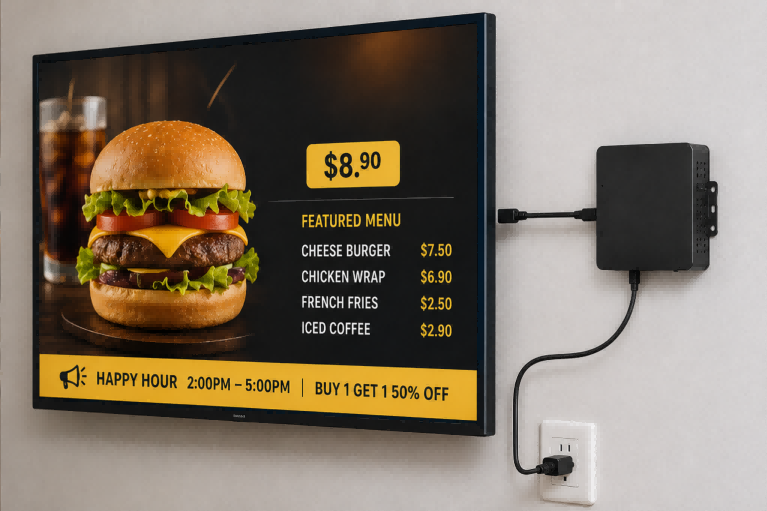
يعتقد العديد من المشترين أن مشروع اللافتات الرقمية يبدأ وينتهي بشراء شاشة. لكن في الواقع، تحتاج لوحات قوائم المطاعم، وشاشات العروض الترويجية في المتاجر، وشاشات العرض في ردهات الفنادق، والأكشاك التفاعلية، وشاشات معلومات المطارات إلى أكثر من مجرد شاشة عرض تجارية. السؤال الحقيقي هو: كيف ستستقبل الشاشة المحتوى، وتُحدّث العروض الترويجية، وتلتزم بجدول زمني، وتُعيد الاتصال بعد انقطاع التيار الكهربائي، وتستمر في العمل عند عدم استقرار الشبكة؟
هذا هو المكان الذي... مشغل وسائط اللافتات الرقمية يُصبح هذا الأمر بالغ الأهمية. فهو ليس مجرد جهاز استقبال تلفزيوني عادي أو مشغل فيديو بسيط. في نظام اللافتات الرقمية، يربط مشغل الوسائط الشاشة وبرنامج إدارة المحتوى والشبكة والتشغيل المحلي معًا. قبل اختيار الشاشات لمشروع تجاري، ينبغي على المشترين فهم وظيفة هذا الجهاز، ومتى تكون هناك حاجة إليه، وكيف يؤثر على التشغيل اليومي والصيانة على المدى الطويل.
ما هو مشغل الوسائط الرقمية للشاشات الإعلانية؟
A مشغل وسائط اللافتات الرقمية هو الجهاز الذي يساعد الشاشة على عرض المحتوى الرقمي مثل الصور والفيديوهات والقوائم والإعلانات وصفحات الويب والإعلانات أو لوحات المعلومات. ببساطة، الشاشة هي ما يراه المستخدم، بينما مشغل الوسائط هو ما يتحكم في ما يظهر على تلك الشاشة.
في العديد من مشاريع اللافتات الرقمية، يكون مشغل الوسائط عبارة عن جهاز صغير يُثبّت خلف الشاشة أو بالقرب منها. ويمكن توصيله بالشاشة عبر منفذ HDMI أو USB أو DisplayPort أو أي منفذ متوافق آخر. وفي حالات أخرى، قد تكون وظيفة مشغل الوسائط مدمجةً في الشاشة التجارية، خاصةً إذا كانت الشاشة مزودة بنظام متكامل على شريحة واحدة. وسواءً كان المشغل خارجيًا أو مدمجًا، فإن دوره الرئيسي هو استقبال المحتوى وتخزينه ومعالجته وعرضه على الشاشة.
على سبيل المثال، في أحد المطاعم، قد لا يرى الزبائن سوى لوحة قائمة طعام رقمية ساطعة تعرض صور الطعام والأسعار والعروض الترويجية. ولكن خلف هذه الشاشة، قد يوجد جهاز تشغيل وسائط صغير يستقبل ملفات القائمة، ويخزنها محليًا، ويعرضها وفقًا للجدول الزمني. فإذا أراد المطعم عرض عروض الإفطار صباحًا وعروض العشاء مساءً، فإن جهاز تشغيل الوسائط هذا يُسهّل ذلك عند استخدامه مع البرنامج المناسب.
يمكن لمشغل الوسائط الرقمية في اللافتات استقبال المحتوى بطرق مختلفة. تستخدم بعض الإعدادات البسيطة محرك أقراص USB أو وحدة تخزين محلية. أما الأنظمة الأكثر تطوراً فتتصل بنظام إدارة المحتوى (CMS) عبر الإنترنت أو شبكة محلية. يتيح ذلك للمستخدمين تحديث المحتوى عن بُعد بدلاً من زيارة كل شاشة يدويًا.
من المهم عدم الخلط بين مشغل اللافتات الرقمية وجهاز استقبال التلفزيون العادي. جهاز استقبال التلفزيون المنزلي مصمم أساسًا لتطبيقات الترفيه والبث المنزلي. أما مشغل الوسائط التجارية، فهو مصمم لتشغيل محتوى الأعمال، والتشغيل المجدول، والتحديثات عن بُعد، والاستخدام الأكثر استقرارًا في الأماكن العامة أو التجارية. بالنسبة للمشترين، يُعد فهم هذا الفرق الخطوة الأولى قبل اختيار نظام لافتات رقمية متكامل.
كيف يعمل مشغل الوسائط الرقمية في نظام اللافتات؟
يعمل نظام اللافتات الرقمية عادةً من خلال سلسلة بسيطة واحدة:
نظام إدارة المحتوى → الشبكة → مشغل الوسائط → شاشة العرض
لكل جزء دور واضح:
- نظام إدارة المحتوى (CMS) يدير المحتوى
نظام إدارة المحتوى (CMS) هو المكان الذي يقوم فيه المستخدمون بتحميل الصور والفيديوهات والقوائم والإعلانات وصفحات الويب أو أي محتوى آخر للشاشة. كما أنه المكان الذي يحدد فيه المستخدمون المحتوى الذي سيظهر على أي شاشة وفي أي وقت. - تقوم الشبكة بإرسال التحديثات إلى اللاعب
تتيح الشبكة لنظام إدارة المحتوى إرسال المحتوى والجداول الزمنية الجديدة إلى كل موقع عرض. ويمكن القيام بذلك عبر شبكة Wi-Fi أو Ethernet أو شبكة محلية. وفي المشاريع متعددة المواقع، تُمكّن الشبكة من إدارة المحتوى عن بُعد. - يقوم مشغل الوسائط بتنزيل المحتوى وتشغيله
يستقبل مشغل الوسائط المحتوى والجداول الزمنية من نظام إدارة المحتوى. وفي كثير من الحالات، يقوم بتنزيل الملفات إلى وحدة التخزين المحلية قبل تشغيلها. وهذا يساعد الشاشة على الاستمرار في عرض المحتوى الذي تم تنزيله مسبقًا حتى في حال انقطاع الشبكة لفترة وجيزة. - تعرض شاشة العرض الرسالة النهائية
تتولى الشاشة مسؤولية عرض المحتوى للمشاهدين. وقد تعرض قائمة طعام، أو عرضًا ترويجيًا، أو رسالة ترحيبية من الفندق، أو صفحة إرشادية، أو معلومات عامة. تعرض الشاشة الرسالة، بينما يتحكم نظام إدارة المحتوى ومشغل الوسائط في كيفية عرضها وتشغيلها.
تبدو آلية العمل البسيطة كالتالي:
- رفع المحتوى لنظام إدارة المحتوى
- جدول متى وأين ينبغي أن يظهر المحتوى
- تحميل محتوى لمشغل الوسائط
- تشغيل المحتوى المعروض على شاشة العرض
- شاشة عرض حالة الشاشة أو المشغل عن بُعد عندما يدعم النظام ذلك
على سبيل المثال، قد تقوم علامة تجارية في قطاع التجزئة بتحميل عرض ترويجي لعطلة نهاية الأسبوع إلى نظام إدارة محتوى سحابي يوم الخميس. يقوم النظام بإرسال التحديث إلى مشغلات الوسائط المثبتة في مختلف المتاجر. يقوم كل مشغل بتنزيل العرض الترويجي ويتبع الجدول الزمني. صباح يوم الجمعة، تبدأ الشاشات بعرض الحملة الجديدة تلقائيًا.
لهذا السبب، لا يقتصر نظام اللافتات الرقمية التجارية على شراء شاشة فحسب. فالشاشة تعرض الرسالة، لكن نظام إدارة المحتوى والشبكة ومشغل الوسائط يضمن تحديث المحتوى المناسب وجدولته وتسليمه وتشغيله بشكل موثوق.
الأنواع الرئيسية لأجهزة تشغيل الوسائط الرقمية للشاشات
يمكن تصنيف مشغلات الوسائط الرقمية الخاصة باللافتات حسب ثلاثة عوامل بسيطة: مكان تثبيت المشغل، وكيفية تحديث المحتوى، وما إذا كان الجهاز مصممًا للتشغيل البسيط أو للاستخدام التجاري طويل الأمدبعض المشغلات عبارة عن صناديق خارجية متصلة بالشاشة، وبعضها مدمج في الشاشة، وبعضها يعتمد على أجهزة البث عبر منفذ USB أو أجهزة البث الاستهلاكية.
الفرق الرئيسي لا يكمن فقط في شكل الجهاز. بل يتعلق الأمر بـ إمكانية التحديث عن بُعد، واستقرار التشغيل، ومرونة الصيانة، وحجم المشروع.
| النوع | كيف يعمل | الأفضل لـ | القيد الرئيسي |
|---|---|---|---|
| مشغل اللافتات الرقمية الخارجي | يتم توصيل صندوق منفصل بالشاشة، عادةً عبر منفذ HDMI | شاشات العرض في متاجر البيع بالتجزئة، وقوائم الطعام في المطاعم، وردهات الفنادق، ومشاريع الشاشات المتعددة | يحتاج إلى تركيب إضافي خلف الشاشة أو بالقرب منها |
| مشغل SoC مدمج | نظام التشغيل مدمج في الشاشة التجارية | تركيبات نظيفة، مشاريع لافتات بسيطة، غرف اجتماعات، ردهات | أقل مرونة في الترقية لاحقًا |
| تشغيل USB | يتم حفظ المحتوى على محرك أقراص USB وتشغيله مباشرة على الشاشة | قوائم طعام ثابتة، ملصقات بسيطة، مقاطع فيديو متكررة أساسية | تحديثات يدوية؛ ليست مثالية للتغييرات المتكررة في المحتوى. |
| جهاز بث المستهلك | يُستخدم جهاز استقبال التلفزيون أو جهاز البث لعرض اللافتات الأساسية | المتاجر الصغيرة، والعروض المؤقتة، واستخدام الشاشة الواحدة بميزانية منخفضة | استقرار تجاري محدود وإدارة عن بعد |
| مشغل اللافتات التجارية | مشغل مصمم خصيصًا لبيئات العرض التجارية | المتاجر المتسلسلة، والأماكن العامة، والأكشاك، ووسائل النقل، وشاشات العرض المتاحة على مدار الساعة. | عادة ما تكون تكلفتها أعلى من تكلفة الأجهزة الاستهلاكية الأساسية |
أن مشغل اللافتات الرقمية الخارجي يُعد هذا خيارًا مرنًا لأن الشاشة وجهاز التشغيل منفصلان. فإذا احتاج جهاز التشغيل إلى الاستبدال أو التحديث أو الصيانة، لا يحتاج المشترون إلى استبدال الشاشة بأكملها. وهذا مفيد للمشاريع التجارية التي تتطلب صيانة طويلة الأمد.
A مشغل SoC مدمج يجعل هذا الإعداد أكثر ترتيبًا لعدم وجود صندوق وسائط إضافي خلف الشاشة. قد يكون مناسبًا لمشاريع العرض التجارية البسيطة، لكن التحديثات المستقبلية قد تكون محدودة بسبب بيئة الأجهزة والبرامج المدمجة.
تشغيل USB هي أبسط الطرق. يمكن استخدامها مع قائمة طعام ثابتة لمطعم أو فيديو ترويجي بسيط، لكن كل تحديث يتطلب عادةً استبدال الملفات يدويًا. بالنسبة للمشاريع متعددة المواقع أو العروض الترويجية الأسبوعية، تصبح هذه الطريقة غير فعالة بسرعة.
A جهاز بث المستهلك قد يكون مناسبًا للاستخدام الخفيف، ولكنه مصمم أساسًا للترفيه المنزلي. وقد لا يوفر ميزات موثوقة مثل التشغيل التلقائي، والمراقبة عن بُعد، والتشغيل المجدول، أو التشغيل المستقر لساعات طويلة.
A مشغل اللافتات التجارية يُعدّ هذا النظام أكثر ملاءمةً عندما يتطلب المشروع تحديثات محتوى عن بُعد، أو تشغيلًا مستقرًا، أو إدارة شاشات متعددة، أو ساعات عمل طويلة. على سبيل المثال، يمكن لسلسلة متاجر تجزئة تحديث جميع عروضها الترويجية من نظام إدارة محتوى واحد بدلاً من مطالبة كل متجر بتغيير المحتوى يدويًا.
لذا فإن السؤال الرئيسي ليس "أي لاعب هو الأفضل؟" بل أي مشغل يناسب طريقة تحديث المحتوى، وموقع الشاشة، وساعات التشغيل، واحتياجات الصيانة لديك؟.
أندرويد، ويندوز، لينكس أو كروم أو إس: أي نظام تشغيل يناسب مشروعك؟
يؤثر نظام التشغيل على كيفية تشغيل مشغل اللافتات الرقمية للتطبيقات، وعرض المحتوى، والتواصل مع برامج إدارة المحتوى، وإدارة الصيانة الدورية. بالنسبة للمشترين، لا يكمن الهدف في اختيار نظام التشغيل "الأكثر تطوراً"، بل في اختيار النظام الأنسب للمشروع.
| نظام اللاعب | مناسب بشكل أفضل لـ | ملاحظات المشتري |
|---|---|---|
| أندرويد | لوحات قوائم الطعام للمطاعم، إعلانات البيع بالتجزئة، اللافتات القياسية، مشاريع صغيرة إلى متوسطة الحجم | فعالة من حيث التكلفة وشائعة، ولكن تحقق من جودة الأجهزة وتوافقها مع نظام إدارة المحتوى. |
| النوافذ | أكشاك تفاعلية، شاشات لمس، لوحات معلومات الشركات، جدران فيديو | أكثر مرونة وقوة، ولكن قد يتطلب ذلك ميزانية أكبر ودعمًا تقنيًا. |
| لينكس | اللافتات الصناعية، والأنظمة المُخصصة، وشاشات العرض الخاصة بالنقل، والحلول المدمجة | مستقر وقابل للتخصيص، ولكنه عادةً ما يحتاج إلى دعم فني أقوى |
| نظام التشغيل ChromeOS | التعليم، المكاتب، أماكن الرعاية الصحية، شبكات الشاشات المُدارة مركزياً | يسهل إدارتها في بيئات جوجل، ولكن يجب التأكد من توافق البرامج. |
أندرويد يكفي عادةً لشاشات العرض الرقمية القياسية. إذا كان المحتوى يتألف بشكل أساسي من صور أو مقاطع فيديو أو قوائم طعام أو صفحات ويب بسيطة أو قوائم تشغيل مُجدولة، فإن مشغل شاشات العرض الرقمية الذي يعمل بنظام أندرويد يُعدّ خيارًا عمليًا واقتصاديًا. وهو شائع في المطاعم ومتاجر البيع بالتجزئة ومناطق الاستقبال ومشاريع العرض التجارية الصغيرة.
النوافذ يُعدّ هذا الخيار أفضل عندما يتطلب المشروع قدرة حاسوبية أكبر أو مرونة برمجية أعلى. فهو مناسب للأكشاك التفاعلية، وتطبيقات اللمس، ولوحات المعلومات المعقدة، وجدران الفيديو، أو بيئات المؤسسات التي تستخدم بالفعل أدوات تعمل بنظام ويندوز. لكن في المقابل، قد تتطلب مشغلات ويندوز المزيد من الإعداد والصيانة وإدارة تقنية المعلومات.
لينكس يُستخدم هذا النظام غالبًا عندما تكون الاستقرارية أو إمكانية التخصيص أو التحكم في الأنظمة المدمجة أمورًا بالغة الأهمية. وهو مناسب للوحات الإرشادية في وسائل النقل، والشاشات الصناعية، والأكشاك المُخصصة، أو المشاريع التي صُممت بيئة البرمجيات فيها لغرض محدد. قد لا يكون الخيار الأسهل للمبتدئين، ولكنه يعمل بكفاءة في الأنظمة التجارية المُتحكم بها.
نظام التشغيل ChromeOS يناسب هذا النظام المشاريع التي تُقدّر الإدارة المركزية البسيطة، لا سيما في المدارس والمكاتب والمرافق الصحية، أو المؤسسات التي تستخدم بالفعل أدوات جوجل. قبل اختياره، ينبغي على المشترين التأكد من توافق نظام إدارة المحتوى الخاص بشاشات العرض الرقمية مع نظام التشغيل ChromeOS بسلاسة.
إحدى الطرق العملية للاختيار بسيطة: استخدم نظام أندرويد للتشغيل العادي، وويندوز للتفاعل المعقد، ولينكس للأنظمة المستقرة المُخصصة، وكروم أو إس لتسهيل الإدارة المركزية. يجب أن يتوافق الاختيار النهائي دائمًا مع نظام إدارة المحتوى، ونوع المحتوى، وبيئة التشغيل، وفريق الصيانة.
أين تُستخدم مشغلات الوسائط الرقمية في اللافتات الرقمية؟
تُستخدم مشغلات الوسائط الرقمية في أي مكان تحتاج فيه الشركات إلى شاشة لعرض محتوى مُحدّث أو مُجدول أو مُرتبط بالموقع. قد يكون المحتوى بسيطًا، لكن بيئة الاستخدام قد تختلف اختلافًا كبيرًا. فلوحة قائمة الطعام في المطعم، وشاشة الترحيب في الفندق، وشاشة معلومات المطار لا تحتاج إلى نفس الإعداد.
| سيناريو | المحتوى المشترك | متطلبات اللاعب |
|---|---|---|
| متاجر البيع بالتجزئة | العروض الترويجية، إعلانات المنتجات، المنتجات الجديدة، عروض العضوية | تحديثات سهلة للمحتوى وتشغيل يومي مستقر |
| المطاعم | قوائم طعام رقمية، وجبات كومبو، عروض لفترة محدودة | محتوى مُجدول لوجبات الإفطار والغداء والعشاء والعروض الترويجية |
| الفنادق | رسائل الترحيب، وجداول الفعاليات، والإعلانات في الردهة، وإرشادات الوصول | تصميم عرض نظيف وإدارة محتوى عن بُعد |
| المكاتب الرئيسية للشركات | الإعلانات، لافتات غرف الاجتماعات، لوحات معلومات مؤشرات الأداء الرئيسية، رسائل الزوار | اتصال بنظام إدارة المحتوى وعرض مجدول موثوق |
| مواصلات | معلومات الوصول، إشعارات السلامة، تحديثات المسار، الرسائل العامة | تشغيل مستقر وتحديثات سريعة للمحتوى |
| تعليم | إعلانات الحرم الجامعي، معلومات الفعاليات، شاشات العرض في الفصول الدراسية، إرشادات الوصول | إدارة مركزية عبر مجالات متعددة |
| الرعاية الصحية | معلومات عن قائمة الانتظار، إرشادات للمرضى، التثقيف الصحي، إشعارات الخدمة | شاشة عرض معلومات واضحة وتشغيل موثوق |
| أكشاك تفاعلية | قوائم الخدمة الذاتية، وخرائط التوجيه، وصفحات تسجيل الوصول، واختيار المنتجات | توافق أقوى مع النظام ودعم اللمس |
| اللافتات الخارجية | الإعلانات، والإعلانات العامة، وتوجيه حركة المرور، والعروض الترويجية في واجهات المتاجر | تشغيل مستقر مع أجهزة مناسبة للبيئات الخارجية |
في مجال اللافتات الرقمية في متاجر البيع بالتجزئة، تساعد مشغلات الوسائط المتاجر على تحديث العروض الترويجية دون الحاجة إلى استبدال الملصقات المطبوعة. يمكن للمتجر عرض إعلانات المنتجات خلال النهار والتحول إلى عروض التصفية في المساء.
بالنسبة لمشغل قوائم الطعام الرقمية، يُعدّ الجدولة مفيدة للغاية. قد يحتاج المطعم إلى قوائم إفطار في الصباح، وقوائم غداء في الظهيرة، وعروض عشاء لاحقاً. يساعد المشغل الشاشة على اتباع خطة المحتوى هذه.
في الفنادق والمكاتب، غالباً ما يكون التركيز على التواصل الواضح. قد تعرض شاشات الاستقبال رسائل ترحيبية، ومعلومات عن الغرف، وجداول الفعاليات، أو مقاطع فيديو تعريفية بالعلامة التجارية. في هذه الحالات، تُعدّ إدارة المحتوى عن بُعد أكثر فائدة من التحديثات اليدوية عبر منفذ USB.
في قطاعات النقل والرعاية الصحية والتعليم، تُعدّ الموثوقية عاملاً بالغ الأهمية. قد تحتاج الشاشات إلى عرض التوجيهات والإشعارات ومعلومات قوائم الانتظار أو تحديثات الخدمة على مدار اليوم. وفي حال وجود العديد من الشاشات في مناطق مختلفة، يصبح الإدارة المركزية ضرورية.
قد يحتاج مشغل الوسائط في الأكشاك إلى أكثر من مجرد تشغيل عادي. غالبًا ما تتضمن الأكشاك التفاعلية شاشات لمس، وخرائط، ونماذج، وخيارات منتجات، وأنظمة تسجيل دخول، أو واجهات متعلقة بالدفع. وهذا يعني أن المشغل يجب أن يتوافق مع متطلبات البرامج والتفاعل.
تُضيف اللافتات الخارجية بُعدًا آخر من الصعوبة. فقد يحتاج المشغل إلى التعامل مع شاشات مثبتة في واجهات المتاجر، أو الأماكن العامة، أو البيئات شبه الخارجية. في هذه المشاريع، ينبغي على المشترين مراعاة ليس فقط عرض المحتوى، بل أيضًا ظروف التركيب، وسهولة الوصول للصيانة، وساعات التشغيل الطويلة.
كيفية اختيار مشغل الوسائط الرقمية المناسب للوحات الإعلانية
لا يقتصر اختيار مشغل الوسائط الرقمية للشاشات على إيجاد جهاز قادر على تشغيل مقاطع الفيديو فحسب. ففي المشاريع التجارية، يكمن الخطر الأكبر في اختيار مشغل يعمل أثناء الاختبار ولكنه يصبح صعب الإدارة بعد التثبيت. فشاشة قائمة طعام مطعم واحدة تختلف عن سلسلة متاجر تضم 50 شاشة.
قبل الشراء، استخدم قائمة التحقق أدناه لمطابقة المشغل مع شاشتك ومحتواك وشبكتك واحتياجات الصيانة الخاصة بك.
| ما الذي يجب فحصه؟ | لماذا يهم ذلك | نصيحة للمشتري |
|---|---|---|
| عدد الشاشات | يُعد مشروع الشاشة الواحدة أسهل في الإدارة من شبكة عرض متعددة المواقع | بالنسبة لشاشة واحدة، قد يكون مشغل بسيط كافيًا. أما بالنسبة للعديد من الشاشات، فاختر مشغلًا يدعم نظام إدارة المحتوى والإدارة عن بُعد. |
| دقة الشاشة | يحتاج محتوى 4K إلى أداء تشغيل أقوى من محتوى HD الأساسي | تأكد من أن المشغل يدعم دقة الشاشة وتنسيق الفيديو |
| اتجاه الشاشة | تستخدم بعض المشاريع شاشات أفقية، بينما تحتاج مشاريع أخرى إلى شاشات عمودية. | تأكد من أن مشغل الفيديو ونظام إدارة المحتوى يدعمان التخطيطات الأفقية والرأسية. |
| نوع المحتوى | تتطلب الملصقات الثابتة، وحلقات الفيديو، وصفحات HTML، ولوحات المعلومات، والمحتوى التفاعلي مستويات أداء مختلفة | يتطلب تشغيل الصور/الفيديوهات البسيطة طاقة أقل؛ بينما يتطلب المحتوى التفاعلي أو المحتوى المستند إلى الويب أجهزة أقوى. |
| اتصال الشبكة | تعتمد التحديثات عن بُعد على اتصال مستقر بشبكة Wi-Fi أو Ethernet أو الشبكة المحلية | تعتبر تقنية الإيثرنت عادةً أكثر استقرارًا بالنسبة للتركيبات التجارية الثابتة |
| التخزين المحلي والتخزين المؤقت | يمكن للمحتوى المخزن مؤقتًا أن يستمر في التشغيل إذا أصبحت الشبكة غير مستقرة لفترة قصيرة | تحقق مما إذا كان بإمكان المشغل تخزين ملفات الوسائط محليًا |
| الإدارة عن بعد | قد يحتاج المشترون إلى تحديث المحتوى أو إعادة تشغيل الأجهزة أو التحقق من الحالة من موقع آخر | بالنسبة للمتاجر المتسلسلة أو الأماكن العامة، تعد الإدارة عن بعد أكثر أهمية من انخفاض تكلفة الأجهزة. |
| ساعات العمل | الشاشة التي تُستخدم لبضع ساعات يوميًا تختلف عن الشاشة التي تعمل طوال اليوم | للاستخدام لساعات طويلة أو على مدار الساعة، ضع في اعتبارك أجهزة اللافتات التجارية بدلاً من الأجهزة الاستهلاكية. |
| الواجهات | قد تكون هناك حاجة إلى منافذ HDMI أو USB أو Ethernet أو الصوت أو منافذ متعلقة باللمس | قم بمطابقة منافذ المشغل مع الشاشة وأي أجهزة خارجية |
| بيئة التركيب | يمكن أن تؤثر الحرارة والغبار والأماكن الضيقة والمناطق الخارجية وسوء التهوية على الاستقرار | تحقق من طريقة التركيب والتهوية وإمكانية الوصول للصيانة قبل النشر |
| توافق نظام إدارة المحتوى | لا يعمل كل مشغل بسلاسة مع كل نظام إدارة محتوى اللافتات الرقمية | تأكد من توافق البرنامج قبل الشراء بالجملة |
| قابلية التوسع | قد يبدأ المشروع بشاشة واحدة ولكنه يتوسع لاحقًا | اختر إعدادًا قابلًا للتطوير دون الحاجة إلى استبدال النظام بأكمله |
| دعم الصيانة | تؤثر مشكلات الأجهزة وتحديثات البرامج واستكشاف الأخطاء وإصلاحها عن بُعد على التكلفة على المدى الطويل | استفسر عن كيفية التعامل مع التحديثات والاستبدال والدعم الفني. |
لـ قائمة طعام مطعم واحدقد يكون الاختيار بسيطًا. قد يحتاج المشتري فقط إلى مشغل عرض رقمي يعمل بنظام أندرويد يدعم قوائم الطعام المجدولة، والتخزين المحلي، وتشغيل الفيديو بسلاسة. الشرط الأساسي هو التأكد من إمكانية تغيير محتوى وجبات الإفطار والغداء والعشاء تلقائيًا.
لـ شبكة شاشات سلسلة البيع بالتجزئةتختلف المتطلبات. يحتاج المشتري إلى تحديثات المحتوى عن بُعد، وجدولة مركزية، ومراقبة الحالة، واتصال شبكة مستقر، وصيانة أسهل للجهاز. في هذه الحالة، قد يؤدي اختيار المشغل الأرخص إلى ارتفاع تكاليف العمالة لاحقًا.
لـ كشك أو شاشة عرض تجارية تفاعليةينبغي على المشترين أيضًا التحقق من توافق الشاشة مع اللمس، وبيئة البرامج، وأداء النظام، وما إذا كان المشغل يدعم التطبيق المطلوب. قد لا يكون المشغل الذي يعمل بشكل جيد لتشغيل الفيديو كافيًا للاستخدام التفاعلي.
القاعدة العملية بسيطة: اختر المشغل بناءً على المشروع، وليس السعر فقط. ابدأ بطرح الأسئلة التالية: كم عدد الشاشات التي سيتم تركيبها؟ ما مدى تكرار تغيير المحتوى؟ من سيتولى إدارة التحديثات؟ هل ستعمل الشاشة طوال اليوم؟ هل يحتاج النظام إلى شاشة لمس، أو صفحات ويب، أو لوحات تحكم، أم إلى فيديو أساسي فقط؟
If the project involves bulk commercial displays, kiosks, or customized signage hardware, it is better to confirm the screen type, player configuration, CMS compatibility, and installation requirements with the manufacturer before ordering. Understanding a Digital signage supply chain guide can also help buyers evaluate manufacturer capabilities, hardware sourcing, customization options, and long-term project support before making a purchase decision.
خطوات الإعداد الأساسية لمشغل الوسائط الرقمية للشاشات الإعلانية
إعداد مشغل الوسائط الرقمية للشاشات عادةً ليس بالأمر الصعب، ولكن يجب اتباع الترتيب الصحيح للخطوات. لا يقتصر الإعداد الجيد على تشغيل الشاشة فحسب، بل يشمل التأكد من توافق الشاشة والمشغل والشبكة والبرمجيات والمحتوى قبل بدء تشغيل النظام.
- تحقق من منافذ توصيل الشاشة
قبل التثبيت، تأكد من المنافذ التي يدعمها جهاز العرض، مثل HDMI أو USB أو Ethernet أو مخرج الصوت. تستخدم معظم مشاريع إعداد مشغلات اللافتات الرقمية منفذ HDMI لإرسال المحتوى من المشغل إلى الشاشة. - قم بتوصيل مشغل الوسائط بالشاشة
ضع مشغل الوسائط خلف الشاشة أو بالقرب منها، ثم قم بتوصيله بالشاشة باستخدام الكابل المناسب. تأكد من ثبات الكابل وعدم تأثيره على تثبيت الجهاز على الحائط أو على موضع الشاشة. - قم بتوصيل مصدر الطاقة
قم بتوصيل مشغل الوسائط بمصدر طاقة موثوق. في الأماكن التجارية، تجنب توصيلات الطاقة غير المحكمة لأن انقطاع التيار الكهربائي قد يؤثر على التشغيل. - الاتصال بالشبكة
استخدم شبكة Wi-Fi أو Ethernet أو شبكة محلية حسب بيئة التركيب. بالنسبة لمشاريع العرض التجاري الثابتة، غالبًا ما يكون Ethernet أكثر استقرارًا، خاصةً عندما تكون تحديثات المحتوى عن بُعد مهمة. - قم بتثبيت تطبيق المشغل أو افتحه
تتطلب بعض مشغلات الوسائط تثبيت تطبيق خاص بالشاشات الرقمية، بينما قد تأتي أخرى مزودة بتطبيق تشغيل مُحمّل مسبقًا. والهدف هو تجهيز الجهاز للتواصل مع برنامج الشاشات الرقمية أو نظام إدارة المحتوى. - اربط اللاعب بنظام إدارة المحتوى
سجّل الدخول إلى نظام إدارة المحتوى (CMS) وقم بتوصيل المشغل باستخدام رمز الجهاز أو الحساب أو طريقة التسجيل المطلوبة. بعد الربط، سيتمكن نظام إدارة المحتوى من إرسال المحتوى والجداول الزمنية إلى المشغل. - قم بتحميل المحتوى وتنظيمه
أضف الصور والفيديوهات والقوائم والملصقات وصفحات الويب أو غيرها من مواد العرض إلى نظام إدارة المحتوى. حافظ على تنظيم أسماء الملفات والمجلدات، خاصةً عند إدارة شاشات متعددة. - اضبط جدول التشغيل
حدد المحتوى الذي سيظهر على كل شاشة ووقت عرضه. على سبيل المثال، قد يعرض مطعم عروض الإفطار في الصباح وعروض العشاء في المساء. - اختبار اتجاه الشاشة ودقتها
تأكد من عرض المحتوى بشكل صحيح في الوضع الأفقي أو الرأسي. وتأكد أيضاً من تطابق دقة الشاشة، حتى لا تبدو النصوص والصور والفيديوهات مشوهة أو غير واضحة. - قم بإجراء اختبار تشغيل نهائي
قبل الاستخدام الرسمي، اختبر إعداد اللافتات الرقمية بالكامل لفترة من الزمن. تأكد من تشغيل المحتوى بسلاسة، وإعادة تشغيله بشكل صحيح، وتحديثه من نظام إدارة المحتوى كما هو متوقع. - المراقبة بعد بدء التشغيل
إذا كان النظام يدعم المراقبة عن بُعد، يمكنك التحقق من حالة المشغل، وتحديثات المحتوى، وأداء التشغيل من لوحة التحكم. يُعد هذا مفيدًا بشكل خاص للمتاجر والفنادق والمكاتب وغيرها من المشاريع متعددة الشاشات.
بالنسبة للمستخدمين المبتدئين، يمكن فهم الإعداد ببساطة: توصيل المشغل، وتوصيل الشبكة، وربط البرنامج، وتحميل المحتوى، وتحديد الجدول الزمني، واختبار الشاشة. قد تختلف الخطوات الدقيقة باختلاف الجهاز والبرنامج، لكن المنطق الأساسي عادةً ما يكون نفسه.
أخطاء شائعة عند اختيار مشغل اللافتات الرقمية
تظهر معظم المشاكل بعد التثبيت، وليس أثناء الاختبار الأول. قد يعمل المشغل بشكل جيد في عرض تجريبي قصير، ولكنه يفشل عندما يتغير المحتوى بشكل متكرر، أو عندما تعمل الشاشات لساعات طويلة، أو عندما يلزم إدارة مواقع متعددة معًا.
| خطأ | مشكلة محتملة | نهج أفضل |
|---|---|---|
| الاختيار بناءً على السعر فقط | قد يوفر هذا الإعداد المال في البداية، ولكنه سيخلق المزيد من أعمال الصيانة لاحقًا. | قارن المشغل بحجم مشروعك، وتواتر التحديث، وساعات التشغيل |
| تجاهل توافق نظام إدارة المحتوى | قد لا يتصل الجهاز بسلاسة بمنصة إدارة المحتوى | تأكد من دعم البرنامج قبل الشراء |
| لا يتم اختبار المحتوى الحقيقي | قد يتم عرض مقاطع الفيديو والصور وصفحات الويب أو التصاميم بشكل غير صحيح. | اختبر الملفات الفعلية ودقة الشاشة واتجاهها قبل النشر |
| تجاهل ظروف الشبكة | قد تفشل التحديثات عن بُعد إذا كان الاتصال غير مستقر. | تحقق من حالة شبكة Wi-Fi أو Ethernet أو الشبكة المحلية في موقع التثبيت |
| نسيان الحرارة ومساحة التركيب | قد يصبح الجهاز غير مستقر في المناطق الضيقة أو سيئة التهوية | تحقق من وضعية التركيب، وتدفق الهواء، وسهولة الوصول للصيانة. |
| لا توجد خطة للصيانة عن بعد | قد تتطلب المشكلات الصغيرة زيارات ميدانية | اختر إعدادًا يسمح بالتحديثات عن بُعد، أو إعادة التشغيل، أو التحقق من الحالة عند الحاجة. |
| تخطي اختبار العينات قبل الطلبات بالجملة | قد لا تظهر المشاكل إلا بعد تثبيت العديد من الشاشات | اختبر إعدادًا كاملاً واحدًا قبل النشر على نطاق واسع |
بالنسبة لشاشة واحدة ذات محتوى نادر التغيير، قد يكون الاختيار بسيطًا. أما بالنسبة لمشروع يتضمن شاشات متعددة، أو عروض ترويجية متكررة، أو مواقع مختلفة، فينبغي اختبار المشغل كجزء من النظام الكامل.
قبل النشر على نطاق واسع، ينبغي على المشترين تجهيز محتوى حقيقي، وتوصيل الشاشة الفعلية، واستخدام نظام إدارة المحتوى المُخطط له، واختبار التشغيل في ظروف التشغيل العادية. يساعد ذلك في الكشف عن المشكلات المتعلقة بتنسيق الملفات، والدقة، واتصال الشبكة، والجدولة، والصيانة قبل أن يصبح تعديل المشروع أكثر صعوبة.
متى يجب عليك العمل مع شركة مصنعة للشاشات أو الأكشاك؟
إذا كنت تحتاج فقط إلى شاشة واحدة لعرض محتوى بسيط، فقد يكفي شراء مشغل وسائط بشكل منفصل. أما إذا كان مشروعك يتضمن شاشات ومشغلات وبرامج وتركيب وتخصيص في آن واحد، فمن الأفضل التعاون مع شركة مصنعة للشاشات أو أكشاك العرض.
يمكن للشركة المصنعة تقديم المساعدة عندما يكون المشروع أكثر من مجرد "شاشة واحدة + مشغل واحد".
| احتياجات المشروع | لماذا يساعد المصنّع |
|---|---|
| شراء الشاشات وأجهزة التشغيل معًا | يساعد على مطابقة الشاشة ومشغل الوسائط والنظام وطريقة التثبيت |
| متاجر أو مواقع متعددة | يحافظ على اتساق تكوين الأجهزة |
| مشروع كشك تفاعلي | يضمن عمل الشاشة ووظيفة اللمس والهيكل والمشغل معًا |
| مظهر أو هيكل مخصص | يدعم تخصيص الشعار واللون والحجم والهيكل والتركيب والواجهة |
| مشروع فندق أو متجر تجزئة أو مطار أو عرض عام | يساعد في اختيار حجم الشاشة المناسب، والسطوع، وإعداد المشغل، وأسلوب التثبيت |
| مشروع تصدير أو طلب بالجملة | يساعد في تأكيد تفاصيل التغليف والملحقات والتكوين والتسليم قبل الشحن |
على سبيل المثال، قد يحتاج متجر صغير إلى شاشة واحدة وجهاز تشغيل أساسي واحد فقط. أما الفنادق وسلاسل المتاجر والمطارات وأكشاك البيع بالتجزئة، فعادةً ما تتطلب حلولاً أكثر شمولاً. إذ يجب أن تتوافق جميع العناصر مع بعضها البعض، من حيث حجم الشاشة ونظام التشغيل ووظيفة اللمس وطريقة التركيب وبيئة الشبكة وطريقة إدارة المحتوى.
يُعدّ هذا الأمر بالغ الأهمية، لا سيما بالنسبة للأكشاك التفاعلية. قد يشتمل الكشك على شاشة لمس، وهيكل معدني، وكاميرا، وماسح ضوئي، وطابعة، ومكبر صوت، أو وحدة دفع. في هذه الحالة، لا يمكن اختيار مشغل الوسائط بشكل منفرد، بل يجب أن يتكامل مع تصميم الأجهزة والبرامج ككل.
بالنسبة لمشاريع العرض التجاري، واللافتات الرقمية، والأكشاك التفاعلية، أو أجهزة التلفزيون الذكية المحمولة، يمكن لـ Ikinor مساعدة المشترين في مراجعة نوع الشاشة، وتكوين المشغل، وتوافق نظام إدارة المحتوى، وطريقة التثبيت، واتجاه التخصيص بناءً على متطلبات المشروع.
باختصار، اشترِ مشغل وسائط فقط عندما يكون المشروع بسيطًا. تعاون مع الشركة المصنعة عندما يتطلب المشروع توافقًا مع الأجهزة، أو تخصيصًا، أو تكاملًا، أو دعمًا طويل الأمد للنشر.
الخاتمة
A مشغل وسائط اللافتات الرقمية ليس مجرد صندوق صغير لتشغيل مقاطع الفيديو. إنه يؤثر على كيفية تحديث المحتوى، وسلاسة عمل الشاشة، وسهولة إدارة النظام، ومقدار الصيانة التي قد يحتاجها المشروع لاحقًا.
لإعداد بسيط بشاشة واحدة، قد يكون مشغل أساسي أو نظام تشغيل مدمج كافيًا. ولكن بالنسبة لـ حلول اللافتات الرقمية التجاريةينبغي على المشترين النظر إلى ما هو أبعد من مجرد التشغيل الأساسي. فنوع الشاشة، وتوافق نظام إدارة المحتوى، وتنسيق المحتوى، وبيئة الشبكة، وساعات التشغيل، وطريقة التثبيت، ونطاق النشر، كلها أمور مهمة.
قبل طلب حل، جهّز حجم شاشتك، ونوع المحتوى، وظروف الشبكة، وسيناريو التثبيت، وما إذا كان المشروع يشمل شاشة واحدة أو مواقع متعددة. هذا يُسهّل عليك اختيار مشغل وسائط مناسب للمشروع بدلاً من مجرد مقارنة أسعار الأجهزة.
الأسئلة الشائعة
مشغل الوسائط الرقمية هو جهاز يساعد الشاشة على عرض محتوى رقمي مثل القوائم والإعلانات والفيديوهات والإشعارات وصفحات الويب أو شاشات المعلومات. وهو يربط الشاشة بمصدر المحتوى، مثل نظام إدارة المحتوى أو وحدة التخزين المحلية أو محرك أقراص USB أو الشبكة. في المشاريع التجارية، يُسهم في تشغيل المحتوى وتحديثه بشكل أكثر موثوقية.
يستقبل مشغل اللافتات الرقمية المحتوى، ويخزن الملفات مؤقتًا، ويتبع جداول التشغيل، ثم يعرض المحتوى النهائي على الشاشة. وبحسب النظام، قد يدعم أيضًا التحديثات عن بُعد، وإعادة التشغيل التلقائي، والتحكم في اتجاه الشاشة، والمراقبة الأساسية. وتتمثل وظيفته الرئيسية في ضمان عرض المحتوى المناسب في الوقت المناسب.
قد تحتاج إلى مشغل وسائط إذا لم تكن شاشتك مزودة بنظام تشغيل مدمج، أو إذا كنت ترغب في تحديثات المحتوى عن بُعد، أو تشغيل مُجدول، أو تشغيل تجاري أكثر استقرارًا. بالنسبة للمحتوى البسيط جدًا، قد يكون التشغيل عبر منفذ USB كافيًا. أما بالنسبة للمتاجر والفنادق والأكشاك والمشاريع متعددة الشاشات، فعادةً ما يكون استخدام مشغل وسائط مناسب أكثر عملية.
نعم، يمكن استخدام جهاز تلفزيون عادي لعرض الإعلانات الرقمية البسيطة إذا كان يدعم منفذ HDMI أو تشغيل USB أو مشغل وسائط متوافق. مع ذلك، لا تُصمَّم أجهزة التلفزيون العادية دائمًا للاستخدام التجاري طويل الأمد، أو للإدارة عن بُعد، أو لعرضها في الأماكن العامة. بالنسبة للمشاريع التجارية، عادةً ما تكون شاشة العرض التجارية المزودة بمشغل وسائط مناسب أكثر موثوقية.
صُمم جهاز استقبال التلفزيون بشكل أساسي للترفيه المنزلي، وتطبيقات البث، والمشاهدة الشخصية. أما مشغل اللافتات الرقمية، فهو مصمم للاستخدام في العروض التجارية، مثل قوائم الطعام، وإعلانات المتاجر، وشاشات الاستقبال، والأكشاك، وشاشات المعلومات العامة. ويكمن الاختلاف الرئيسي بينهما ليس فقط في التشغيل، بل أيضاً في الجدولة، والتحديثات عن بُعد، والاستقرار، والإدارة التجارية.
ابدأ بمتطلبات المشروع. تحقق من عدد الشاشات، ودقة الشاشة، ونوع المحتوى، وتواتر التحديث، وظروف الشبكة، وساعات التشغيل، وتوافق نظام إدارة المحتوى، وبيئة التثبيت. بالنسبة لشاشة واحدة بسيطة، قد يكون مشغل أساسي كافيًا. أما بالنسبة للشاشات التجارية الكبيرة، أو الأكشاك، أو المشاريع متعددة المواقع، فاختر مشغلًا يدعم التشغيل المستقر والصيانة السهلة.



 Arabic
  English
  Spanish
  French
  Indonesian
  German
  Portuguese
  Russian
  Vietnamese
  Thai
Thai  Italian