
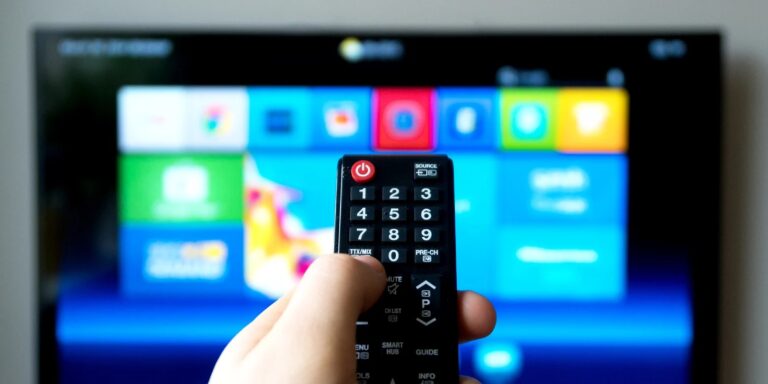
Nombreux sont ceux qui ne réalisent le problème que lorsque leur téléviseur s'allume normalement mais qu'il leur est impossible d'ouvrir YouTube, Netflix ou toute autre application de streaming. La télécommande peut comporter un bouton Accueil ou Menu, mais l'écran n'affiche que les paramètres de base. Il se peut aussi que le téléviseur soit équipé d'un port HDMI, mais qu'il ne propose ni Wi-Fi, ni App Store, ni écran d'accueil intelligent.
Votre téléviseur est-il une Smart TV, une Smart TV ancienne génération, ou simplement un téléviseur classique doté de ports d'entrée externes ? Ce guide vous aidera à identifier les différents types de téléviseurs, à comprendre pourquoi certaines applications ne fonctionnent pas correctement et à découvrir des solutions simples pour transformer un téléviseur classique en Smart TV grâce au Wi-Fi, à la connexion HDMI, aux appareils de streaming, à la diffusion depuis un smartphone ou à d'autres solutions pratiques.
Comment savoir rapidement si votre téléviseur est une Smart TV
La méthode la plus simple pour vérifier est simple : Allumez votre téléviseur et appuyez sur la touche Accueil ou Menu de la télécommande.
Si vous voyez un écran avec des applications telles que YouTube, Netflix, Prime Video, Disney+, un App Store ou des recommandations de contenu, votre téléviseur est probablement un téléviseur intelligent. Si vous ne voyez que des options de base comme Image, son, chaîne, entrée, luminosité ou paramètresVotre téléviseur est peut-être un téléviseur ordinaire.
Ensuite, vérifiez ces cinq signes un par un.
1. Appuyez sur le bouton Accueil ou Menu
Presse Accueil ou Menu sur votre télécommande.
Si le téléviseur affiche des icônes d'applications, des suggestions de films ou un écran d'accueil intelligent, il s'agit probablement d'une Smart TV.
Si l'appareil n'affiche que les paramètres du téléviseur, la source d'entrée ou les options de chaînes, il n'est peut-être pas intelligent.
2. Recherchez des applications de streaming
Vérifiez si vous pouvez voir des applications comme :
- YouTube
- Netflix
- Prime Video
- Disney+
- Navigateur
- App Store
Si ces applications sont déjà installées sur votre téléviseur, ou si vous pouvez les télécharger depuis une boutique d'applications, il s'agit probablement d'une Smart TV.
3. Vérifiez les paramètres Wi-Fi ou réseau
Ouvrez le menu des paramètres et recherchez :
- Wi-Fi
- Réseau
- Internet
- Ethernet
Si votre téléviseur peut se connecter à Internet à domicile par Wi-Fi ou Ethernet, il s'agit peut-être d'une Smart TV. Mais n'oubliez pas : Les paramètres Internet seuls ne suffisent pasLe téléviseur devrait également prendre en charge les applications ou le contenu en ligne.
4. Vérifiez la télécommande
Regardez votre télécommande. Si elle possède des boutons comme Accueil, Applications, Netflix, YouTube, Prime Video ou Assistant Google, c'est un indice important.
Mais ne vous fiez pas uniquement à la télécommande. Certaines télécommandes sont compatibles avec différents modèles de téléviseurs ; vérifiez donc toujours l’écran et les réglages du téléviseur.
5. Recherchez le numéro de modèle du téléviseur
Si vous avez encore des doutes, vérifiez le numéro de modèle. Vous le trouverez généralement :
- Au dos du téléviseur
- Dans le menu des paramètres
- Dans le manuel d'utilisation
- Sur la boîte d'origine
Recherchez le numéro de modèle en ligne avec des mots comme « Téléviseur intelligent », « spécifications » ou « applications ». C'est le moyen le plus fiable de confirmer les caractéristiques exactes.
| Vérifiez ceci | Si vous voyez ceci | Ce que cela signifie |
|---|---|---|
| Écran d'accueil/menu | YouTube, Netflix, applications, App Store | Probablement une Smart TV |
| Écran d'accueil/menu | Image, son, chaîne, entrée uniquement | Probablement une télévision ordinaire |
| Paramètres | Wi-Fi, réseau, Ethernet | Peut prendre en charge des fonctionnalités intelligentes |
| Section Applications | App Store ou applications téléchargeables | Signe évident d'une Smart TV |
| Télécommande | Accueil, Applications, Netflix, Boutons YouTube | Bonne piste, mais pas preuve définitive |
| Numéro de modèle | Répertorié en ligne comme Smart TV | Confirmation la plus fiable |
Voici une règle simple : Si votre téléviseur peut se connecter à Internet et ouvrir automatiquement des applications de streaming, il s'agit d'une Smart TV. Si elle ne fonctionne qu'avec le câble, une antenne, un lecteur DVD, une console de jeux ou une entrée HDMI, il s'agit probablement d'un téléviseur classique.
Que signifie Smart TV ? Smart TV ou télévision classique ?
A Télévision intelligente Ce n'est pas parce qu'il possède un grand écran ou un port HDMI qu'il est intelligent. C'est parce qu'il combine trois éléments : un écran de télévision, une connexion Internet et un système intégré capable d'exécuter des applicationsEn termes simples :
Télévision + Internet + Applications = Smart TV
Un téléviseur classique sert principalement d'écran. Il peut afficher les chaînes du câble, les émissions de l'antenne, les DVD, les consoles de jeux ou tout appareil connecté via les ports HDMI ou AV. En revanche, il ne prend généralement pas en charge les applications de streaming. Si vous souhaitez regarder YouTube ou Netflix sur un téléviseur classique, vous avez généralement besoin d'un autre appareil pour accéder à ces applications.
Une Smart TV fonctionne différemment. Dotée de son propre système d'exploitation, elle permet d'ouvrir des applications depuis l'écran d'accueil, de se connecter au Wi-Fi, de rechercher des vidéos en ligne, de mettre à jour les applications et, parfois, de diffuser du contenu depuis son téléphone. C'est pourquoi une Smart TV ressemble davantage à un téléphone ou une tablette intégrés à un écran de télévision.
L'important, c'est que pouvoir regarder des chaînes de télévision ne signifie pas que le téléviseur est intelligent. De nombreux téléviseurs classiques peuvent recevoir les chaînes locales ou afficher le contenu d'un décodeur câble. La véritable différence réside dans la capacité du téléviseur à accéder de manière autonome à du contenu provenant d'Internet.
| Fonctionnalité | Télévision régulière | Télévision intelligente |
|---|---|---|
| Regardez la télévision par câble ou par antenne | Oui | Oui |
| Utilisez des appareils HDMI | Oui | Oui |
| Se connecter au Wi-Fi | Généralement non | Généralement oui |
| Ouvrez directement les applications de streaming. | Non | Oui, si pris en charge |
| Télécharger ou mettre à jour les applications | Non | Généralement oui |
| Utilisez la recherche en ligne ou les recommandations | Non | Souvent oui |
| Diffuser ou dupliquer depuis le téléphone | Nécessite généralement un appareil supplémentaire | Souvent soutenu |
Une Smart TV peut fonctionner sans connexion internet, mais uniquement comme un téléviseur classique. Vous pourrez toujours regarder les chaînes du câble ou utiliser des appareils HDMI, mais les applications de streaming, la recherche en ligne, les mises à jour d'applications et les recommandations de contenu nécessitent généralement une connexion Wi-Fi ou Ethernet.
La différence la plus évidente est donc la suivante : Un téléviseur classique dépend d'appareils externes pour ses fonctionnalités intelligentes, tandis qu'un téléviseur intelligent intègre ces fonctionnalités.
Pourquoi votre téléviseur ressemble à une Smart TV, mais les applications et le Wi-Fi ne fonctionnent toujours pas ?
Parfois, le problème ne réside pas dans le fait que le téléviseur soit intelligent, mais plutôt dans l'utilisation de ses fonctionnalités connectées. Un téléviseur peut afficher des icônes d'applications, un menu Wi-Fi ou un écran d'accueil, sans pour autant permettre d'ouvrir YouTube, Netflix ou d'autres applications de streaming. Avant d'essayer de le réparer, il est utile de comprendre les causes habituelles du problème.
Une raison fréquente est que le téléviseur est connexion internet incorrecteIl se peut que les paramètres Wi-Fi s'affichent à l'écran, mais que la connexion soit inactive. Un mot de passe incorrect, un signal faible, une distance trop importante par rapport au routeur ou un réseau domestique instable peuvent empêcher le chargement des applications, même si le téléviseur semble connecté.
Une autre raison est une système de télévision obsolèteLes téléviseurs intelligents plus anciens peuvent encore s'allumer et afficher un écran d'accueil, mais leur système d'exploitation risque de ne plus prendre en charge les versions récentes des applications. Cela peut entraîner des ralentissements, une instabilité ou l'indisponibilité de certaines applications. Dans certains cas, l'icône d'une application peut toujours apparaître, mais l'application elle-même risque de ne plus fonctionner correctement sur ce modèle.
Le problème peut également provenir de l'application elle-mêmeCertaines applications ne sont pas installées par défaut. D'autres nécessitent une mise à jour, un téléchargement depuis l'App Store ou la connexion à un compte valide. Si YouTube ou Netflix sont absents, cela ne signifie pas forcément que votre téléviseur n'est pas connecté. Il se peut simplement que l'application ne soit pas installée, à jour ou disponible dans votre région.
Paramètres du compte et de la région Cela peut également affecter ce que vous voyez. Certaines applications de streaming nécessitent un abonnement, une connexion ou un paramétrage de localisation. Si la région de votre téléviseur ne correspond pas à la zone de service de l'application, certaines applications peuvent ne pas apparaître dans la boutique d'applications, ou bien s'ouvrir sans pouvoir lire le contenu.
Dans certains cas, la télévision seulement On dirait une Smart TV Parce qu'elle possède une télécommande moderne, un bouton Accueil ou des ports HDMI. Cependant, un bouton Accueil/Menu peut ne permettre que l'accès aux réglages de base, et la présence d'un port HDMI indique simplement que le téléviseur peut recevoir des signaux d'un autre appareil. Ces fonctionnalités ne signifient pas systématiquement que le téléviseur est doté d'un système intelligent.
Enfin, l'âge de l'appareil compte. Un téléviseur intelligent plus ancien peut encore fonctionner pour la télévision par câble, les appareils HDMI ou pour un visionnage basique, mais ses fonctionnalités intelligentes peuvent sembler lentes ou limitées. Cela ne signifie pas forcément que le téléviseur est défectueux. Cela signifie simplement que le logiciel, les applications ou le matériel ne sont plus adaptés aux besoins actuels en matière de streaming.
Avant de choisir une solution, identifiez d'abord la cause probable : Connexion Internet, Wi-Fi faible, système obsolète, application manquante, limitations de compte ou de région, fonctionnalités d'affichage basiques ou matériel ancienLes sections suivantes vous montreront comment transformer un téléviseur classique en téléviseur intelligent et comment résoudre les problèmes courants étape par étape.
Comment transformer une télévision classique en smart TV
Oui, il est possible de transformer une télévision classique en smart TV, mais la méthode appropriée dépend d'une question essentielle : De quels ports et périphériques disposez-vous déjà ? Si votre téléviseur possède un port HDMI, la procédure est généralement simple. Si votre téléviseur est plus ancien et ne dispose que de ports AV/RCA, vous aurez peut-être encore des options, mais elles seront plus limitées.
L’objectif est de laisser un autre appareil assurer les fonctionnalités « intelligentes », tandis que votre téléviseur sert d’écran.
Méthode 1 : Utiliser une clé de streaming ou un boîtier TV
Pour la plupart des gens, le moyen le plus simple de transformer un téléviseur classique en smart TV est de connecter un Clé de streaming ou Boîtier TV au port HDMI du téléviseur.
Ces appareils sont généralement fournis avec leur propre télécommande, une connexion Wi-Fi, un écran d'accueil et des applications de streaming. Une fois connectés, vous pouvez accéder à des services comme YouTube, Netflix, Prime Video, Disney+ ou d'autres applications compatibles avec l'appareil.
Cette méthode est idéale si votre écran de télévision fonctionne encore bien, mais que le téléviseur lui-même ne possède pas d'applications intégrées.
Vous avez généralement besoin de :
- Un téléviseur avec un port HDMI
- Une connexion Wi-Fi stable
- Une clé de streaming ou un boîtier TV
- Une source d'alimentation pour l'appareil
- Un compte pour les applications que vous souhaitez utiliser
Avant d'acheter un appareil HDMI, vérifiez avant tout la présence d'un port HDMI libre sur votre téléviseur. Si les ports HDMI sont cachés derrière le téléviseur ou trop près du mur, assurez-vous que l'appareil puisse s'y insérer sans problème.
Méthode 2 : Utiliser une console de jeux
Une console de jeux peut aussi faire office de téléviseur connecté. Si vous possédez déjà une PlayStation, une Xbox ou une autre console moderne connectée à votre téléviseur, vous pourrez peut-être installer des applications de streaming directement sur la console.
C'est pratique si vous ne souhaitez pas acheter un appareil de streaming supplémentaire. Vous pouvez utiliser la console pour ouvrir des applications vidéo, regarder du contenu en ligne et accéder à des plateformes de divertissement directement sur votre téléviseur.
Cette méthode est idéale pour les utilisateurs qui possèdent déjà une console et qui n'ont pas d'objection à utiliser une manette de jeu ou le menu de la console pour visionner du contenu.
Cependant, cette option n'est pas forcément la plus pratique pour tout le monde. Par exemple, les personnes âgées préféreront peut-être une simple télécommande de streaming à une manette de jeu.
Méthode 3 : Utiliser la diffusion depuis un téléphone, la duplication d’écran ou AirPlay
Si vous regardez souvent des vidéos sur votre téléphone, vous pourriez vouloir diffuser ce contenu sur votre téléviseur. Cela peut se faire via Fonderie, Mise en miroir de l'écranou AirPlay, selon votre téléphone, votre téléviseur et l'appareil connecté.
En termes simples :
- Fonderie envoie le contenu des applications compatibles de votre téléphone vers le téléviseur.
- Miroir Affiche l'écran de votre téléphone directement sur le téléviseur.
- AirPlay est couramment utilisé pour les appareils Apple et les écrans ou récepteurs compatibles.
Cette méthode est pratique pour afficher des vidéos, des photos, des présentations ou du contenu mobile sur un écran plus grand. Elle peut également s'avérer utile si votre téléviseur ne dispose pas d'applications dédiées, mais que vous avez un appareil connecté compatible avec la diffusion.
En général, les deux appareils doivent être connectés au même réseau Wi-Fi. S'ils ne le sont pas, le téléviseur risque de ne pas apparaître comme option de diffusion.
Diffuser du contenu depuis son téléphone est pratique, mais la connexion n'est pas toujours aussi stable qu'avec un appareil de streaming dédié. Si vous regardez des films en streaming tous les jours, une clé de streaming ou un boîtier TV vous offrira une expérience plus fluide.
Méthode 4 : Connecter un ordinateur portable via HDMI
Une autre façon simple de transformer un téléviseur classique en smart TV consiste à connecter un ordinateur portable au téléviseur à l'aide d'un… câble HDMI.
Dans cette configuration, l'ordinateur portable offre les fonctionnalités intelligentes. Le téléviseur sert simplement d'écran plus grand. Vous pouvez ouvrir un navigateur, regarder des vidéos YouTube, vous connecter à des services de streaming, projeter des diapositives ou lire des vidéos téléchargées depuis votre ordinateur.
Cette méthode est utile si vous possédez déjà un ordinateur portable et que vous souhaitez une solution rapide sans avoir à acheter un nouvel appareil TV.
Vous avez généralement besoin de :
- Un ordinateur portable
- Un câble HDMI
- Un téléviseur avec un port HDMI
- La source d'entrée TV correcte a été sélectionnée.
Si votre ordinateur portable ne possède pas de port HDMI standard, vous aurez peut-être besoin d'un adaptateur USB-C vers HDMI ou d'un autre câble compatible. Cette méthode fonctionne, mais elle est moins pratique pour regarder la télévision au quotidien, car vous devez garder l'ordinateur portable à proximité.
Méthode 5 : Utiliser un convertisseur pour les téléviseurs très anciens
Si votre ancien téléviseur ne possède pas de port HDMI et seulement des ports AV/RCA rouges, blancs et jaunes, vous pourrez peut-être tout de même connecter un appareil moderne à l'aide d'un câble HDMI. Convertisseur HDMI vers RCA.
Cela permet à un appareil de streaming, un ordinateur portable ou toute autre source HDMI de transmettre un signal vidéo et audio à un téléviseur ancien. Toutefois, cette méthode présente des limitations : la qualité d'image peut être inférieure, la configuration peut être moins stable et certains appareils modernes peuvent ne pas fonctionner correctement avec les anciens formats d'entrée.
Cette option est idéale si vous souhaitez continuer à utiliser votre ancien téléviseur pour des usages basiques. Si vous préférez une diffusion en continu fluide, une meilleure qualité d'image et une utilisation plus intuitive, l'achat d'un téléviseur plus récent sera sans doute plus judicieux.
| Méthode | Meilleur pour | Ce dont vous avez besoin | Principale limitation |
|---|---|---|---|
| Clé de streaming ou boîtier TV | La plupart des téléviseurs classiques avec HDMI | Port HDMI, Wi-Fi, appareil de streaming | Nécessite l'achat d'un appareil supplémentaire |
| Console de jeux | Les utilisateurs qui possèdent déjà une console | Console, HDMI, internet | Moins simple pour les non-joueurs |
| Diffusion ou duplication d'écran | Vidéos mobiles, photos, partage rapide | Même réseau Wi-Fi, appareil compatible | Peut être moins stable lors de longs flux vidéo. |
| Ordinateur portable via HDMI | Installation rapide, utilisation du navigateur, présentations | Ordinateur portable, câble HDMI, entrée TV | Moins pratique pour la surveillance quotidienne |
| Convertisseur HDMI vers RCA | Téléviseurs très anciens sans HDMI | Convertisseur, ports AV/RCA, périphérique externe | Qualité inférieure et moins fiable |
La règle la plus simple est la suivante : Si votre téléviseur classique possède une entrée HDMI, un Streaming Stick ou un boîtier TV est généralement la solution de mise à niveau la plus simple. Si vous possédez déjà une console de jeux ou un ordinateur portable, vous pouvez commencer par les utiliser. Si votre téléviseur est très ancien et ne dispose pas de port HDMI, un convertisseur peut fonctionner, mais l'expérience Smart TV risque d'être moins fluide.
Liste de vérification pour le dépannage des téléviseurs intelligents
Après avoir connecté un appareil de streaming, configuré le Wi-Fi, installé des applications ou essayé la diffusion depuis votre téléphone, il est possible que vous rencontriez encore quelques petits problèmes. Utilisez cette liste de vérification pour identifier rapidement le problème avant de remplacer votre téléviseur ou d'acheter un autre appareil.
| Problème que vous voyez | Cause possible | Que vérifier en premier | Que faire ensuite ? | Quand envisager une mise à niveau |
|---|---|---|---|---|
| Le téléviseur ne peut pas se connecter au Wi-Fi | Mot de passe incorrect, signal faible, distance du routeur insuffisante ou erreur réseau | Vérifiez si d'autres appareils peuvent utiliser le même réseau Wi-Fi. | Redémarrez le routeur, reconnectez-vous au Wi-Fi, rapprochez le routeur ou utilisez une connexion Ethernet si disponible. | Si le téléviseur perd souvent la connexion Wi-Fi et ne dispose d'aucune option filaire |
| Les applications sont visibles mais ne s'ouvrent pas. | Erreur d'application, système TV obsolète, connexion internet faible ou problème de compte | Ouvrez une autre application pour voir si le problème affecte toutes les applications. | Mettez à jour l'application, redémarrez le téléviseur, vérifiez votre connexion Internet ou réinstallez l'application si possible. | Si de nombreuses applications ne fonctionnent plus sur l'ancien système de télévision |
| YouTube ou Netflix est absent. | Application non installée, restriction géographique ou système TV non pris en charge | Consultez l'App Store ou la section applications de votre téléviseur. | Recherchez l'application, mettez à jour le système TV ou vérifiez les paramètres de compte et de région | Si l'application n'est plus prise en charge par votre modèle de téléviseur |
| La vidéo se met en mémoire tampon sans cesse. | Wi-Fi lent, signal faible, trop d'appareils connectés au réseau | Essayez une autre vidéo ou application | Rapprochez-vous du routeur, réduisez les autres activités de streaming ou utilisez une connexion Ethernet. | Si le matériel du téléviseur est trop ancien pour une diffusion en continu fluide |
| Le périphérique HDMI ne détecte aucun signal | Source d'entrée incorrecte, câble mal branché, port HDMI défectueux ou appareil non alimenté | Vérifiez si l'entrée du téléviseur correspond au port HDMI. | Rebranchez le câble HDMI, changez la source d'entrée, testez un autre port HDMI ou redémarrez l'appareil. | Si le téléviseur possède des ports HDMI endommagés ou en nombre insuffisant |
| Le Streaming Stick ou le boîtier TV ne démarre pas | Pas d'alimentation, alimentation USB faible ou configuration inachevée | Vérifiez si le voyant de l'appareil est allumé. | Utilisez l'adaptateur secteur d'origine, rebranchez le câble HDMI et suivez les instructions à l'écran lors de la configuration de l'appareil. | Si votre téléviseur ne prend pas en charge correctement la connexion de l'appareil |
| La diffusion depuis le téléphone ne fonctionne pas | Le téléphone et le téléviseur ne sont pas connectés au même réseau Wi-Fi, ou le téléviseur ne prend pas en charge la diffusion. | Vérifiez que les deux appareils sont connectés au même réseau. | Redémarrez les deux appareils, ouvrez à nouveau l'application de diffusion ou utilisez un récepteur compatible. | Si vous avez souvent besoin de diffuser du contenu mais que votre téléviseur ne le prend pas bien en charge |
| La duplication d'écran présente un délai | Connexion Wi-Fi faible, téléphone ancien, système TV ancien ou contenu vidéo volumineux | Commencez par faire un essai avec des photos ou une courte vidéo. | Rapprochez-vous du routeur ou utilisez un câble HDMI pour un affichage plus stable. | Si vous avez besoin d'une lecture vidéo fluide au quotidien |
| Les boutons de la télécommande n'ouvrent pas les fonctions intelligentes. | Incompatibilité de la télécommande, piles déchargées ou interface TV de base | Remplacez les piles et testez à nouveau le menu Accueil/Menu. | Consultez manuellement le menu du téléviseur ou utilisez la recherche par numéro de modèle. | Si le téléviseur ne prend en charge que les paramètres de base et aucune application |
| L'image apparaît, mais il n'y a pas de son. | Sortie audio incorrecte, problème HDMI, appareil en mode silencieux ou paramètre d'application incorrect | Vérifiez le volume du téléviseur et le volume de l'appareil externe. | Rebranchez le câble HDMI, modifiez la sortie audio, redémarrez l'application ou l'appareil. | Si des problèmes audio surviennent sur toutes les entrées et applications |
Commencez par les vérifications les plus simples. Redémarrez le téléviseur, reconnectez-vous au Wi-Fi, vérifiez que l'entrée HDMI est correcte et testez une autre application ou un autre câble. De nombreux problèmes de dépannage des téléviseurs connectés proviennent des paramètres de connexion plutôt que du téléviseur lui-même.
De plus, évitez d'acheter un nouvel appareil avant d'en connaître la cause exacte. Par exemple, si le signal Wi-Fi est faible, un nouvel appareil de streaming peut toujours présenter des problèmes de mise en mémoire tampon. Si le port HDMI est mal branché ou endommagé, un boîtier TV ne résoudra peut-être pas le problème non plus.
Si les mêmes problèmes persistent, notamment l'absence d'applications, la lenteur des menus, l'instabilité du Wi-Fi ou l'incompatibilité avec certains services de streaming, il se peut que votre téléviseur soit tout simplement trop ancien pour les fonctionnalités connectées actuelles. Dans ce cas, il est judicieux de comparer le coût de la réparation avec l'intérêt d'acquérir un téléviseur connecté plus récent ou une autre solution plus conviviale.
Quand faut-il arrêter de remplacer son ancien téléviseur et acheter un nouveau téléviseur intelligent ?
Il n'est pas toujours nécessaire de remplacer un vieux téléviseur. Si l'écran est encore de bonne qualité et que le port HDMI fonctionne, vous pouvez souvent le transformer en Smart TV grâce à un Streaming Stick ou un boîtier TV. En revanche, si vous achetez sans cesse des adaptateurs, changez de câbles, redémarrez des applications et que votre expérience reste décevante, il est peut-être temps d'arrêter les mises à jour et d'envisager l'achat d'une nouvelle Smart TV.
Utilisez cette règle simple :
Continuez à le mettre à jour si l'écran est de bonne qualité, que le port HDMI fonctionne et que vous n'avez besoin que d'applications de streaming basiques.
Envisagez l'achat d'une nouvelle Smart TV si votre téléviseur actuel n'a pas de port HDMI, si l'image est floue, s'il est lent ou s'il ne prend plus en charge les applications dont vous avez besoin.
| Votre situation | Meilleur choix | Pourquoi |
|---|---|---|
| Le téléviseur possède une sortie HDMI et l'image reste nette. | Utilisez une clé de streaming ou un boîtier TV | C'est un moyen simple d'ajouter des applications sans remplacer l'écran. |
| Vous ne voulez que YouTube, Netflix ou Prime Video. | Utilisez un périphérique de diffusion externe | Vous n'avez pas besoin d'une nouvelle télévision pour regarder des vidéos en streaming. |
| Le téléviseur ne possède pas de port HDMI. | Envisagez l'achat d'une nouvelle Smart TV | Les convertisseurs peuvent fonctionner, mais l'expérience est souvent limitée. |
| L'image semble floue ou de trop basse résolution. | Envisagez l'achat d'une nouvelle Smart TV | Les périphériques externes ne peuvent pas améliorer la qualité de l'écran |
| Le menu de la télévision est très lent. | Utilisez d'abord une clé de streaming. | Il pourrait contourner l'ancien système intelligent. |
| Les applications disparaissent ou cessent de fonctionner. | Utilisez une clé de streaming ou achetez une nouvelle Smart TV | L'ancien système de télévision peut ne plus prendre en charge les applications modernes. |
| La connexion Wi-Fi se coupe sans arrêt. | Essayez d'abord une connexion Ethernet ou un périphérique externe. | Si le problème persiste, le matériel du téléviseur est peut-être trop ancien. |
| La diffusion depuis un téléphone échoue souvent. | Utilisez un appareil de casting compatible | Si la diffusion est importante au quotidien, un téléviseur plus récent pourrait s'avérer plus pratique. |
| La télécommande, les ports ou les boutons ne sont pas fiables. | Envisagez l'achat d'une nouvelle Smart TV | L'utilisation quotidienne ne devrait pas être difficile. |
| Les parents plus âgés ou les enfants utilisent souvent la télévision | Envisagez l'achat d'une nouvelle Smart TV | Un écran d'accueil simple et une télécommande facile à utiliser peuvent valoir le coup. |
Voici une façon plus simple d'y réfléchir.
Si votre ancien téléviseur possède encore un bon écran, conservez-le. Branchez-y un Streaming Stick, un boîtier TV, une console de jeux ou un ordinateur portable via HDMI. Cette solution est idéale lorsque le problème principal est l'absence d'applications, et non une mauvaise qualité d'image.
Si le problème vient du téléviseur lui-même, changer d'accessoires ne sera peut-être pas très utile. Une clé de streaming ne résoudra pas un problème d'image floue. Un convertisseur ne modernisera pas un vieux téléviseur. Une nouvelle télécommande ne résoudra pas un problème de système obsolète qui ne prend plus en charge vos applications préférées.
La question essentielle n'est pas « Est-ce que je peux encore faire fonctionner ce téléviseur ? »
La question la plus pertinente est : Cette configuration restera-t-elle facile et agréable à utiliser au quotidien ?
Si la réponse est oui, remplacez votre ancien téléviseur par un appareil externe. Si la réponse est non, l'achat d'un nouveau téléviseur intelligent sera peut-être plus judicieux.
Quelles caractéristiques devez-vous vérifier avant d'acheter une nouvelle Smart TV ?
L'achat d'une nouvelle Smart TV ne se résume pas à choisir le plus grand écran ou le prix le plus bas. Une télévision peut paraître moderne en magasin, mais si le système est lent, si les applications dont vous avez besoin sont absentes ou si les ports de connexion sont limités, son utilisation quotidienne peut vite devenir frustrante. Avant de passer à l'étape supérieure, concentrez-vous sur les fonctionnalités qui ont un impact réel sur votre utilisation : système, applications, connectivité, qualité d'image, taille de l'écran et facilité d'utilisation.
Utilisez cette liste de vérification avant de prendre une décision.
| Fonctionnalité à vérifier | Pourquoi c'est important | Meilleur pour |
|---|---|---|
| Système d'exploitation | Le système détermine la facilité d'utilisation du téléviseur et les applications compatibles. | Les utilisateurs qui souhaitent un écran d'accueil épuré et un accès simple aux applications |
| Compatibilité de l'application | Toutes les Smart TV ne prennent pas en charge toutes les applications de streaming dans toutes les régions. | Les personnes qui regardent principalement YouTube, Netflix, Prime Video, Disney+ ou des applications locales |
| Wi-Fi et Ethernet | Une connexion internet stable est importante pour le streaming. | Les foyers avec plusieurs utilisateurs ou un visionnage fréquent de vidéos en ligne |
| Bluetooth | Utile pour les casques audio, les haut-parleurs, les claviers ou certaines télécommandes | Les utilisateurs qui souhaitent une écoute privée ou un son externe |
| Ports HDMI | Nécessaire pour les consoles de jeux, les boîtiers TV, les ordinateurs portables, les barres de son et autres appareils. | Les familles possédant plusieurs appareils externes |
| Ports USB | Utile pour la lecture multimédia, les accessoires ou la simple consultation de fichiers | Utilisateurs qui lisent des vidéos ou des photos locales |
| Taille de l'écran | La taille appropriée dépend de la taille de la pièce et de la distance de vision. | Salons, chambres, bureaux et petits appartements |
| Résolution | Affecte la netteté de l'image, surtout sur les grands écrans. | Les utilisateurs qui regardent des films, des événements sportifs, des jeux ou des vidéos de haute qualité |
| Support de moulage | Permet d'envoyer du contenu depuis votre téléphone ou votre ordinateur portable vers le téléviseur | Les personnes qui regardent souvent des vidéos sur leur téléphone portable ou partagent des photos |
| Commande à distance et vocale | Facilite les opérations quotidiennes | Les familles, les utilisateurs plus âgés et tous ceux qui souhaitent une navigation simple |
| Mises à jour logicielles | Contribue à maintenir les applications, la sécurité et les fonctions système plus utilisables au fil du temps. | Les utilisateurs qui souhaitent des fonctionnalités intelligentes à plus long terme |
Le système d'exploitation est un élément essentiel d'une Smart TV. Des systèmes comme Google TV, Android TV, Roku TV, Fire TV ou les plateformes propriétaires peuvent offrir une expérience utilisateur très différente au quotidien. Certains privilégient la variété des applications, d'autres la simplicité de navigation, et d'autres encore sont plus compatibles avec certains téléphones ou appareils domotiques. Le meilleur choix n'est pas toujours le plus sophistiqué, mais celui qui prend en charge les applications et les commandes que vous utilisez réellement.
La compatibilité avec les applications est tout aussi importante. Si votre objectif principal est de regarder YouTube et Netflix, assurez-vous que ces applications sont disponibles et faciles à ouvrir. Si vous utilisez des plateformes de streaming régionales, des applications de télévision locales, des applications sportives ou des applications de contenu pour enfants, vérifiez la compatibilité avant l'achat. Un grand écran ne sert pas à grand-chose si le contenu souhaité est difficile d'accès.
Les ports de connexion sont un autre détail souvent négligé par les acheteurs. Vérifiez au minimum le nombre de ports HDMI du téléviseur. Un seul port HDMI peut s'avérer insuffisant si vous utilisez une console de jeux, une barre de son, un ordinateur portable ou un boîtier TV. Le Bluetooth peut également être utile pour connecter un casque ou des enceintes sans fil.
La taille et la résolution de l'écran doivent être adaptées à votre pièce, et pas seulement à votre budget. Un très grand téléviseur dans une petite pièce peut s'avérer inconfortable, tandis qu'un petit écran dans un grand salon risque de ne pas offrir une expérience visuelle optimale. Pour les films, le sport, les jeux vidéo et les divertissements familiaux, la qualité d'image et la distance de visionnage doivent être considérées conjointement.
Enfin, pensez à la facilité d'utilisation. Une bonne Smart TV doit être simple à contrôler, facile à connecter et agréable à regarder au quotidien. Si des personnes âgées, des enfants ou plusieurs membres de la famille l'utilisent, un écran d'accueil clair, une télécommande réactive, une connexion Wi-Fi stable et un accès facile aux applications seront peut-être plus importants que des fonctionnalités avancées complexes.
Voici une règle d'achat simple : Choisissez votre Smart TV en fonction de votre utilisation quotidienne, et pas seulement de la taille de l'écran ou du prix.
Quelle solution Smart TV correspond le mieux à votre utilisation ?
Après avoir examiné les principales caractéristiques d'une nouvelle Smart TV, l'étape suivante consiste à choisir la solution la mieux adaptée à vos besoins. L'achat d'un nouveau téléviseur n'est pas toujours nécessaire. Certains utilisateurs recherchent simplement un appareil de streaming. D'autres privilégieront un écran plus polyvalent, utilisable dans différentes pièces, ou un affichage plus facile à utiliser pour toute la famille ou au bureau.
Utilisez le tableau ci-dessous comme guide rapide.
| Scénario d'utilisation | Meilleure option | Raison simple |
|---|---|---|
| Vous voulez uniquement regarder des applications de streaming | Clé de streaming ou boîtier TV | Il ajoute l'accès aux applications sans remplacer le téléviseur. |
| Ta vieille télé a encore l'air bien | périphérique de streaming externe | L'écran reste utile, vous n'avez donc besoin que des fonctions intelligentes. |
| Les parents plus âgés ou les enfants utilisent la télévision | Nouvelle Smart TV | Les applications intégrées et une télécommande simple facilitent l'utilisation quotidienne. |
| Vous regardez souvent des vidéos sur votre téléphone | Diffusion, AirPlay ou recopie d'écran | Cela correspond aux habitudes de visionnage privilégiant les mobiles. |
| Vous souhaitez déplacer l'écran d'une pièce à l'autre. | Téléviseur intelligent portable | Idéal pour les chambres, les cuisines, les espaces de remise en forme ou les petits appartements |
| Vous avez besoin d'un écran pour les réunions de bureau. | Téléviseur intelligent ou écran sans fil | Idéal pour les présentations, le partage d'écran et le visionnage en groupe. |
| Votre ancien téléviseur n'a pas de port HDMI. | Les nouvelles Smart TV sont peut-être plus faciles à utiliser. | Les convertisseurs peuvent fonctionner, mais la configuration est souvent moins pratique. |
| Vous avez un budget limité | Clé de streaming, boîtier TV ou ordinateur portable via HDMI | Vous pouvez améliorer votre expérience sans acheter un nouvel écran. |
Si votre objectif principal est de regarder YouTube, Netflix, Prime Video ou des applications similaires, un Clé de streaming ou boîtier TV C'est souvent le choix le plus pratique. C'est particulièrement utile si votre téléviseur actuel offre encore une image nette et un port HDMI fonctionnel. Dans ce cas, il n'est peut-être pas nécessaire de remplacer tout le téléviseur.
Si le téléviseur est destiné à être utilisé par des parents âgés, des enfants ou toute personne préférant une utilisation simple, un nouvelle Smart TV Cela pourrait s'avérer plus simple à long terme. Le principal avantage réside dans la praticité : moins de câbles, moins de périphériques externes et un accès plus direct aux applications depuis l'écran d'accueil.
Si vos habitudes de visionnage commencent sur votre téléphone, Diffusion, AirPlay ou recopie d'écran Cela pourrait mieux convenir. C'est pratique pour les courtes vidéos, les photos, la musique ou le partage rapide de contenu. C'est également utile lorsque plusieurs personnes souhaitent partager du contenu depuis leurs téléphones.
Si vous ne regardez pas toujours la télévision au même endroit, Téléviseur intelligent portable Cela peut être plus adapté. Par exemple, vous pourriez vouloir déplacer l'écran de la chambre à la cuisine, l'utiliser pendant vos séances de sport ou l'installer dans un petit appartement où une installation fixe est peu pratique.
Pour les bureaux, les petites salles de réunion, les salles de classe ou les espaces de travail en équipe, un Téléviseur intelligent ou écran sans fil Un système d'affichage multi-écrans peut s'avérer plus adapté qu'un téléviseur classique. Dans ce cas, l'écran ne sert pas uniquement au divertissement ; il peut également être nécessaire pour les présentations, le visionnage partagé et une connexion rapide depuis un ordinateur portable ou un appareil mobile.
Si votre téléviseur actuel est très ancien et ne possède pas de port HDMI, soyez prudent avec les convertisseurs. Ils peuvent s'avérer utiles dans certains cas, mais ils peuvent aussi compliquer l'installation. Pour une expérience plus simple et plus agréable à long terme, l'achat d'un téléviseur intelligent plus récent sera peut-être plus judicieux.
La manière la plus simple de décider est de demander : Ai-je besoin d'applications, de mobilité, d'une utilisation familiale simple, du partage de téléphone, d'un affichage au bureau ou simplement d'une mise à niveau à petit prix ? Une fois le scénario principal clarifié, choisir la solution Smart TV adaptée devient beaucoup plus simple.
FAQ
Vous pouvez vérifier votre téléviseur en appuyant sur Accueil ou Menu Appuyez sur le bouton de la télécommande. Si vous voyez des applications, un App Store, des recommandations de contenu ou des icônes comme YouTube et Netflix, votre téléviseur est probablement une Smart TV. Vous pouvez également consulter le menu des paramètres pour les options Wi-Fi, réseau ou Ethernet, ou rechercher le numéro de modèle en ligne.
Oui, de nombreux téléviseurs classiques peuvent devenir des « Smart TV » en y connectant un appareil externe. Si votre téléviseur possède un port HDMI, vous pouvez utiliser une clé de streaming, un boîtier TV, une console de jeux ou un ordinateur portable pour accéder à des applications de streaming et à du contenu en ligne. Le téléviseur sert d'écran, tandis que l'appareil connecté offre les fonctionnalités connectées.
Si votre téléviseur n'est pas équipé du Wi-Fi, il ne s'agit peut-être pas d'une Smart TV. Toutefois, vous pouvez toujours profiter des fonctionnalités connectées en y connectant un appareil de streaming externe, à condition que votre téléviseur dispose d'un port HDMI. L'appareil externe se connecte au Wi-Fi, tandis que le téléviseur affiche le contenu. Si votre téléviseur ne possède pas de port HDMI, les possibilités de configuration sont plus limitées.
Oui, une Smart TV peut fonctionner sans connexion internet, mais uniquement pour les fonctions de base. Vous pouvez toujours regarder la télévision par câble, les chaînes hertziennes, les appareils HDMI, les supports USB ou les consoles de jeux. Cependant, les applications de streaming, la recherche en ligne, les mises à jour d'applications, les recommandations de contenu et la plupart des fonctionnalités intelligentes nécessitent généralement une connexion Wi-Fi ou Ethernet pour fonctionner correctement.
Il se peut que Netflix ou YouTube soient absents car l'application n'est pas installée, votre système TV est obsolète, l'application n'est pas disponible dans votre région ou n'est plus compatible avec votre modèle de téléviseur. Consultez d'abord la boutique d'applications de votre téléviseur. Si l'application est introuvable ou non mise à jour, un boîtier multimédia externe (Streaming Stick ou TV Box) peut constituer une solution pratique.
Vous pouvez utiliser votre téléphone pour diffuser du contenu sur un téléviseur via Cast, AirPlay ou la recopie d'écran si votre téléviseur ou appareil connecté est compatible. C'est pratique pour les vidéos, les photos, la musique ou les présentations. Cependant, la diffusion depuis un téléphone dépend de la stabilité du Wi-Fi et de la compatibilité de l'appareil ; le rendu peut donc être moins fluide qu'avec un appareil de streaming dédié.
Pour la plupart des téléviseurs anciens équipés d'une prise HDMI, la solution la plus simple consiste à utiliser un boîtier multimédia (ou Streaming Stick). Ces appareils sont généralement fournis avec leur propre télécommande, une connexion Wi-Fi, un menu d'applications et sont compatibles avec les plateformes de streaming. Il suffit de connecter l'appareil au port HDMI, de suivre les instructions d'installation et d'utiliser le téléviseur comme écran.





 French
  English
  Spanish
  Arabic
  Indonesian
  German
  Portuguese
  Russian
  Vietnamese
  Thai
Thai  Italian